Piso WiFi 10.0.0.1 Admin Dashboard Walkthrough
Last updated: June 2026
The Piso WiFi dashboard at 10.0.0.1 is the owner’s control center.
What the Piso WiFi Dashboard Is
The dashboard is the admin web page that runs your whole machine. A Piso WiFi machine is a coin-operated WiFi device: you drop a coin and get internet time. Each unit serves a small page on its gateway, 10.0.0.1, with a customer side and an owner side.
The user side shows only a coin and timer page. The admin side, opened with the 10.0.0.1 admin login, unlocks the full dashboard. From there you set pricing, network rules, and reports in one panel. Because it is just a web page, any phone browser can open it.
That openness is exactly why a strong login matters. Anyone who reaches this page controls your earnings. Treat the dashboard as the brain of a small business, and guard the admin password the way you would guard your cash box.
How Do You Open the Dashboard?
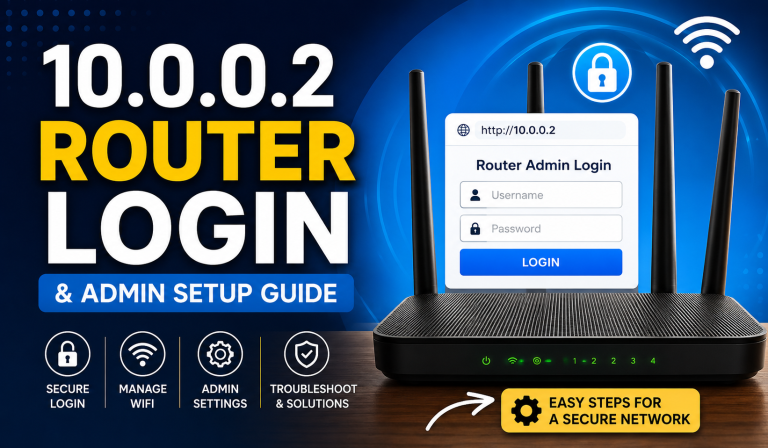
Opening the dashboard takes four quick steps. Join your Piso WiFi network, go to 10.0.0.1, tap the Admin link, and sign in. On a fresh board the login is often admin / admin or blank, and you land on the dashboard home with menus down the side or across the top.
- Connect to your Piso WiFi network and open http://10.0.0.1.
- Find the Admin link (often 10.0.0.1/admin).
- Enter the admin login. On a new board it is often admin / admin or blank.
- Land on the dashboard home with menus on the side or top.
For full sign-in steps, use the 10.0.0.1 Piso WiFi login guide. Defaults rejected? The password was changed, and a factory reset restores it but wipes your settings, so keep that as a last resort.
The Main Dashboard Sections
Layouts differ by board, with LPB, Wican, and others arranging menus their own way. Even so, almost every dashboard groups the same core areas: pricing, wireless, bandwidth, vouchers, sales, clients, and system tools. Knowing these by name helps you find any setting fast.
| Section | What it controls |
|---|---|
| Rates / Pricing | Minutes given per peso |
| Wireless / SSID | WiFi name, password, security mode |
| Bandwidth | Per-user speed caps for fair sharing |
| Vouchers | Make prepaid access codes |
| Sales / Report | Earnings from the coin slot |
| Clients | Connected devices, disconnect controls |
| System | Reboot, backup, firmware, admin password |
Open each one before the machine goes live, so nothing surprises you later. For board-specific menus, our LPB Piso WiFi login & password guide maps the common firmware.
Setting Profitable Time Rates
The rates section is the heart of the dashboard, because it decides your profit. Open it and set the minutes each coin grants, for example 1 peso for 10 minutes or 5 pesos for 60 minutes. Save, then test with a real coin to confirm the timer matches your setting.
Price the time with care. Work out your internet cost per hour, then set rates so a busy day covers that cost with margin. Many owners add a small bonus on bigger coins, which means fewer coin inserts and less wear on the slot over time.
Vouchers, Sales, and Clients
Beyond pricing, the dashboard handles day-to-day selling and monitoring. Vouchers sell prepaid codes, the sales report tracks your earnings, bandwidth caps keep speeds fair, and the client list shows who is online. Together these turn a simple coin box into a manageable little business.
- Vouchers sell prepaid codes that grant set time. Handy for regulars.
- Sales report shows totals collected, so you can match it to the coins in the box.
- Bandwidth caps stop one heavy user from slowing everyone.
- Client list shows who is connected and lets you disconnect a stuck device.
Check the sales report against the real coins often. A steady gap usually means a coin-slot fault, not theft, and catching it early saves lost income. Set up codes in our Piso WiFi voucher guide.
Locking Down Your Dashboard
The dashboard controls your income, so lock it down on day one. Change the default admin login immediately and protect it with a strong key. Reboot the board now and then, and take a settings backup if your firmware supports it. Small habits keep the panel reliable.
- Change the default admin login right away.
- Protect it with a strong Piso WiFi admin password.
- Write the new password down and keep a copy safe.
- Reboot the board occasionally and back up your settings.
A strong login is a basic form of access control for the panel that holds your earnings. If it ever refuses to open when you need it, the login problems guide covers every cause and fix. Glance at the sales report each day, and update firmware when the maker offers one.
Frequently Asked Questions (2026)
How do I open the Piso WiFi admin dashboard?
Connect to your Piso WiFi network, open http://10.0.0.1, tap the Admin link, and sign in with the admin credentials (commonly admin/admin or blank on a new board).
What can I control from the Piso WiFi dashboard?
Time rates, the WiFi name and password, per-user bandwidth, voucher codes, sales reports, and connected devices — all from one admin panel.
How do I set the time rate on Piso WiFi?
In the Rates or Pricing section, set the minutes each coin grants (e.g. 1 peso = 10 minutes), save, then test with a real coin to confirm.
I forgot my Piso WiFi dashboard password. What now?
Do a factory reset on the board to restore the default admin login. Note this also clears your rates and WiFi settings, so reconfigure afterward.
Can I manage the Piso WiFi dashboard from my phone?
Yes. The dashboard is a web page, so any phone browser connected to the network can open http://10.0.0.1 and manage rates, vouchers, and sales — no app required.