ogging in to 10.0.0.1 from your Chromebook is quick and easy. First, connect your Chromebook to the router or Piso WiFi network. Then open the Chrome browser, type http://10.0.0.1 in the address bar, and press Enter. This guide shows you the login steps in simple words and includes easy solutions if you have trouble opening the login page.
Quick Answer: Join the router or Piso WiFi network, then type http://10.0.0.1 in the address bar and press Enter. Sign in with admin / admin or a blank password. If Chrome runs a search instead, add http://, and disable any VPN or proxy extension that blocks the local page.
Why Open 10.0.0.1 on a Chromebook
This address opens the admin panel for many routers and Piso WiFi machines. A Piso WiFi machine is a coin-operated WiFi device common in the Philippines. A Chromebook needs no extra software, since the Chrome browser handles everything. That makes it one of the simplest devices for this job.
It is the same 10.0.0.1 admin login page used on any device.
Connecting Your Chromebook First
Your Chromebook must join the router or Piso WiFi network before the page appears. Click the clock in the corner, open the WiFi menu, and pick that network. Turn off any VPN extension for now, because it can route you off the local network. Then you are ready to open Chrome.
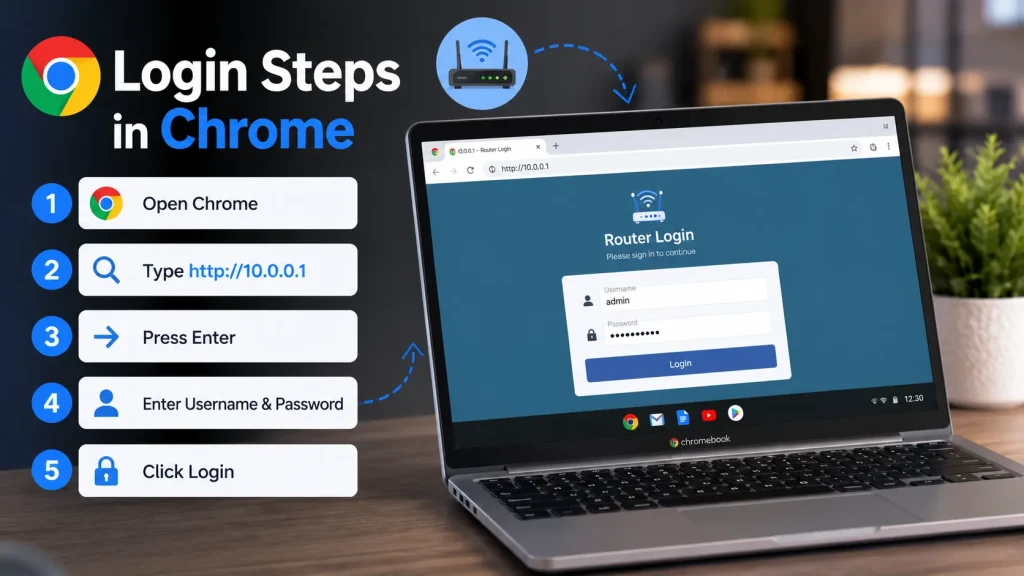
Login Steps in Chrome
Signing in is fast once you are connected. Open Chrome, type the address with http in front, and press Enter. The login form loads, so enter the admin credentials and click Login. The http:// prefix stops Chrome from treating the address as a web search.
Default Username and Password
Most routers and Piso WiFi machines use the username admin and the password admin, or a blank password. Look at the device sticker for the exact login. Never guess a seller’s custom password. If a custom password was lost, a factory reset brings back these defaults.
| Field | Common Default |
|---|---|
| Username | admin |
| Password | admin or blank |
Set a new password right away to protect the admin panel.
What You Can Change
The admin panel controls how your network looks and runs. From the dashboard you can rename the WiFi, set a stronger password, and adjust Piso WiFi time rates. You can also review the list of connected devices. Every change is saved directly from the admin page.
When the Page Will Not Load
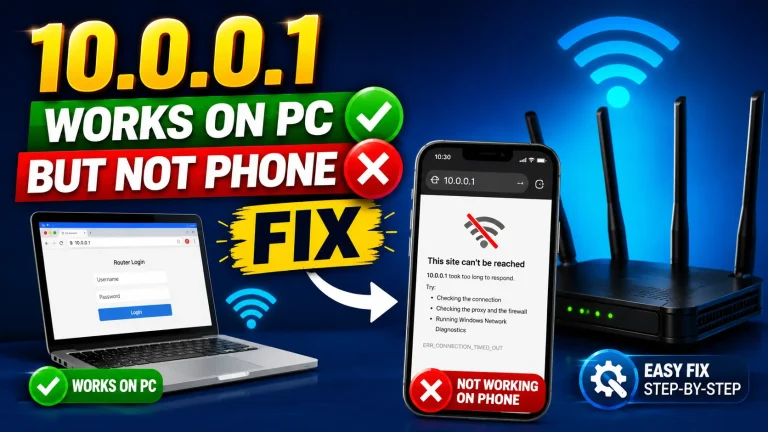
On a Chromebook the usual culprit is an extension or a missing http prefix. Confirm the right WiFi, type http, and disable any VPN or proxy extension. An Incognito window skips both the cache and most extensions. These checks clear nearly every Chromebook login error.
A private network address like this only works locally. Still stuck? See 10.0.0.1 refused to connect or our Piso WiFi login problems guide.
Frequently Asked Questions
Do I need an app to open 10.0.0.1 on a Chromebook?
No. The built-in Chrome browser is all you need. Just type http://10.0.0.1 in the address bar.
Why does my Chromebook search instead of opening 10.0.0.1?
Add http:// in front. Typing http://10.0.0.1 tells Chrome it is an address, not a web search.
What is the default 10.0.0.1 login?
Usually admin with admin or a blank password. The exact login is often on the device sticker.
A VPN extension is on. Will 10.0.0.1 still open?
Often not. Turn the VPN extension off, since it can route you away from the local 10.0.0.1 page.
Conclusion
Using 10.0.0.1 on a Chromebook is simple when you follow the right steps. Connect to the correct WiFi network, open Chrome, and enter http://10.0.0.1 to access the login page. After signing in, you can manage your router or Piso WiFi settings with ease. If the page does not open, check your connection, disable VPN extensions, and try the simple fixes in this guide.