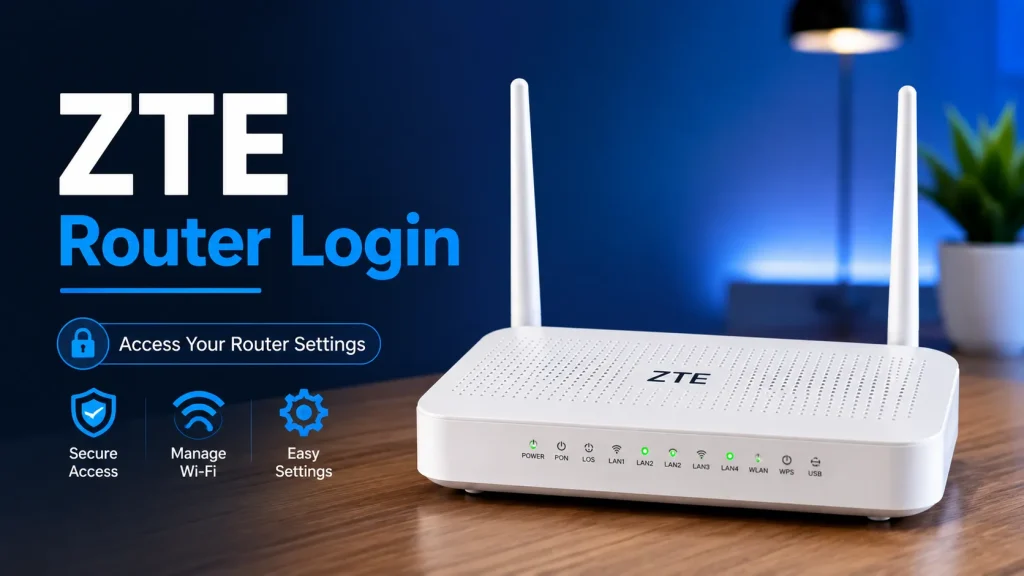
If you want to change your WiFi password, rename your network, or manage your internet settings, you first need to log in to your ZTE Router. The process is simple and only takes a few minutes. Connect your phone, laptop, or computer to the router using WiFi or an Ethernet cable. Then open a web browser and enter your router’s IP address, such as 192.168.1.1, 192.168.0.1, or 192.168.100.1 for some fiber models.
After the login page appears, enter the correct username and password to access the router settings. Once logged in, you can manage your WiFi network, connected devices, security settings, and many other features.
Quick Answer
Most ZTE Router models use one of these default IP addresses:
The default username is usually admin. The default password is often admin, but many internet providers use a unique password printed on the router label. If the default login does not work, always check the sticker on your router.
ZTE Router Login Basics
The login page is the control panel of your ZTE Router. You can access it from any modern browser without installing an app. Whether you use Windows, Mac, Android, or iPhone, the login process is almost the same.
After signing in, you can:
Default ZTE Router IP Addresses
Most ZTE routers use one of the following IP addresses.
| Setting | Value |
|---|---|
| Primary IP | 192.168.1.1 |
| Alternative IP | 192.168.0.1 |
| Fiber Models | 192.168.100.1 |
| Username | admin |
| Password | admin or the password on the router sticker |
Things You Need Before Login
Before you log in, make sure everything is ready.
These simple checks help avoid login problems.
How to Find Your Router IP
If you do not know your router IP address, there are two easy ways to find it.
Method 1: Check the Router Sticker
Most routers have a label on the back or bottom. The default IP address, username, and password are usually printed there.
Method 2: Use Windows
How to Log In to a ZTE Router
Follow these simple steps to access your Router settings.
Connect to the Router
Connect your computer, laptop, or smartphone to the ZTE Router using WiFi or an Ethernet cable. Make sure the connection is active before you continue.
Open a Web Browser
Launch any web browser, such as Google Chrome, Microsoft Edge, Firefox, or Safari, on your connected device.
Enter the Router IP Address
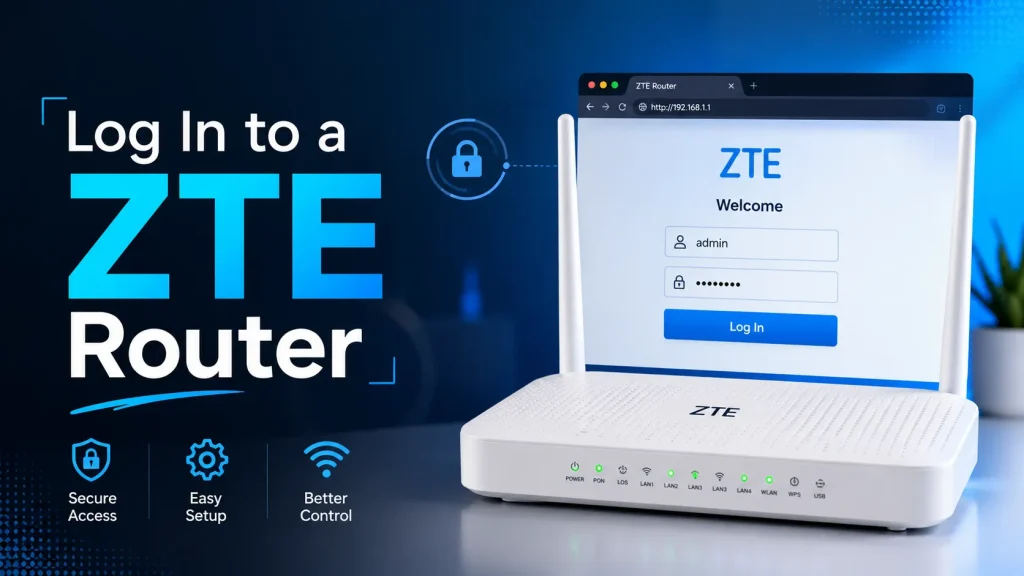
Type your router’s IP address into the browser’s address bar. Most ZTE routers use 192.168.1.1, 192.168.0.1, or 192.168.100.1 for some fiber models. Then press Enter.
Sign In to the Router
When the login page appears, enter the correct username and password. If you have never changed them, use the default credentials or check the sticker on your router.
Access the Router Dashboard
Click the Login button. After signing in successfully, you can manage your WiFi settings, change the password, view connected devices, and configure other router options.
Default ZTE Router Username & Password
Many ZTE routers use the following default login details.
| Field | Default |
|---|---|
| Username | admin |
| Password | admin |
Some internet providers replace the default password with a unique one printed on the router label. If admin does not work, check the sticker first.
What Can You Do After Login?
After accessing your Router, you can manage many settings.
You can:
These features help improve both security and performance.
How to Change the WiFi Name & Password
Changing your WiFi details is one of the first things you should do.
Reconnect all your devices using the new password.
How to Log In Using Your Phone
You can also manage your router from an Android phone or iPhone.
ZTE Router Login Not Working?
If the login page does not open, try these solutions.
Check the IP Address
Make sure you entered the correct IP.
Check the Password
Use the password printed on the router label if the default password does not work.
Restart the Router
Turn the router off for about 30 seconds and turn it back on.
Try Another Browser
Sometimes clearing your browser cache or using another browser solves the problem.
Reset the Router
If you forgot the password, reset the router to factory settings.
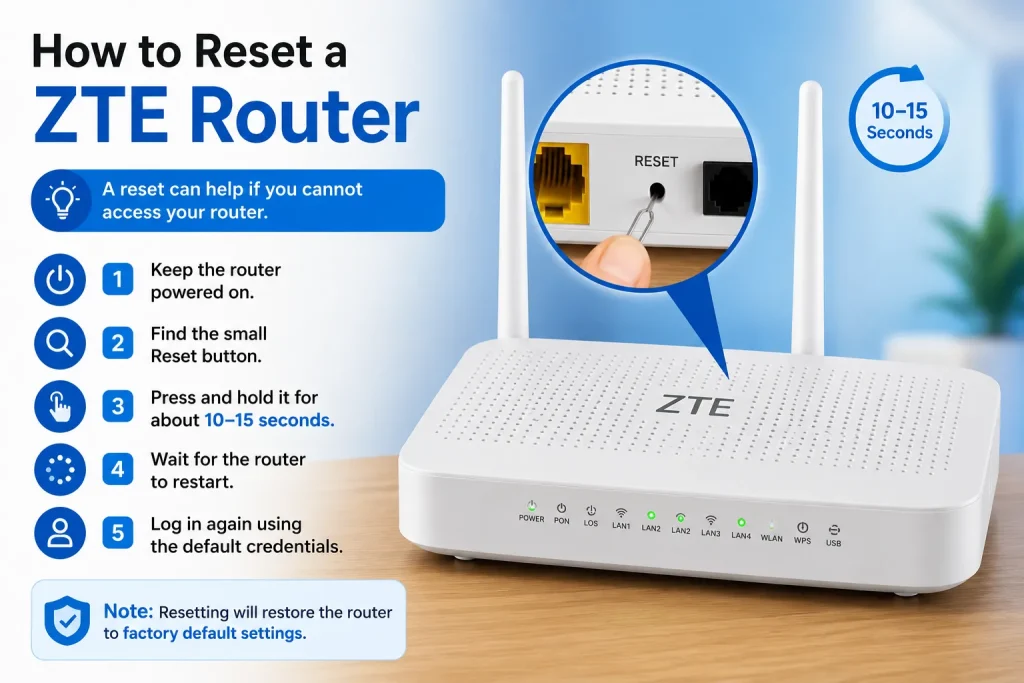
How to Reset a ZTE Router
If you cannot access your router, a reset may help.
Remember that resetting removes all custom settings, including your WiFi name and password
ZTE Router LED Light Meanings
Understanding the indicator lights can help identify problems.
| Light | Meaning |
|---|---|
| Power | Router is turned on |
| Internet | Internet connection is active |
| WiFi | Wireless network is enabled |
| LAN | Wired device is connected |
| WPS | WPS pairing is active |
| LOS | Fiber connection problem |
Security Tips
Protect your ZTE Router with these simple tips.
Frequently Asked Questions
What is the default password for a ZTE Router?
Most routers use admin, but many providers print a unique password on the router label.
What is the default IP address?
Most models use 192.168.1.1 or 192.168.0.1. Some fiber routers use 192.168.100.1.
Can I log in from my phone?
Yes. Connect to the router’s WiFi, open a browser, enter the router IP, and sign in.
Why is the login page not opening?
Check that you are connected to the router, use the correct IP address, restart the router, and try another browser.
How do I reset my ZTE Router?
Hold the Reset button for about 10–15 seconds until the router restarts. This restores the factory settings.
Will resetting delete my WiFi settings?
Yes. A factory reset removes your custom WiFi name, password, and other changes.
How often should I change my WiFi password?
Changing it every few months or whenever you think someone else knows it is a good security practice.
Conclusion
Logging in to a ZTE Router is quick and easy when you know the correct IP address and login details. After signing in, you can manage your WiFi, improve network security, update settings, and monitor connected devices. If you have trouble logging in, check the router label for the correct credentials, restart the router, or perform a factory reset if needed. Keeping your router settings updated and using a strong password will help your home network stay secure and run smoothly.