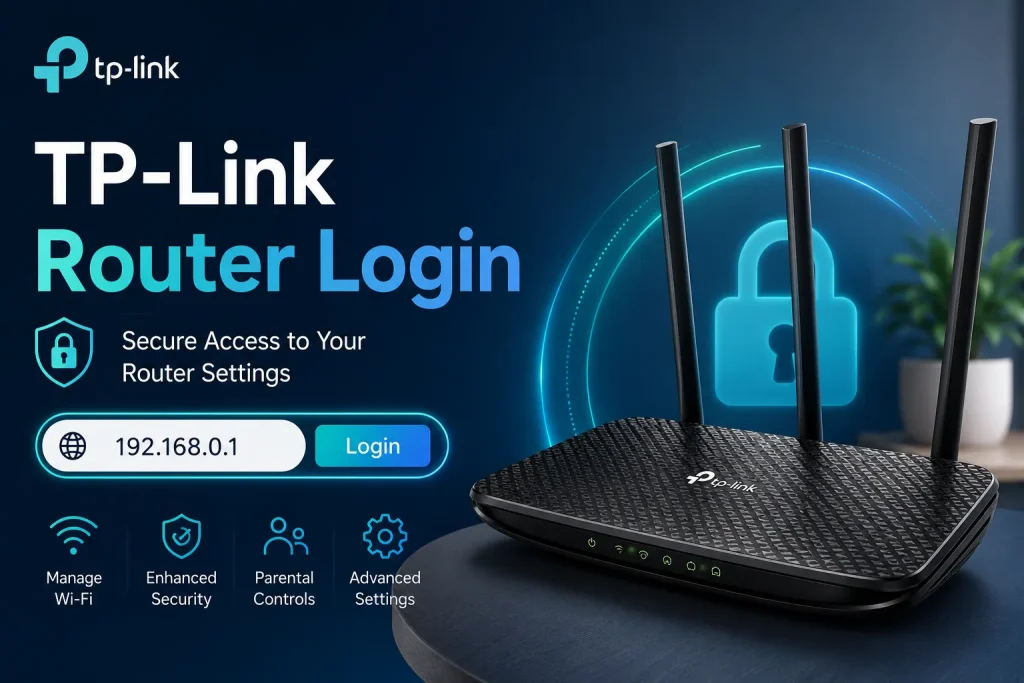
TP-Link Router Login
If you want to change your Wi-Fi password, update your network name, or manage your router settings, you first need to access the TP-Link Router Login page. TP-Link routers are widely used in homes and offices because they are easy to set up, reliable, and offer stable internet performance. Once you log in to the router’s admin panel, you can control many important network settings without needing any technical knowledge.
Most TP-Link routers use the default IP address 192.168.0.1 or 192.168.1.1. Some newer models also allow you to access the login page through tplinkwifi.net. After entering the correct username and password, you can manage your wireless network, connected devices, security settings, and much more.
Quick Answer
To access TP-Link Router Login, connect your phone, laptop, or computer to the TP-Link router. Open your preferred web browser and enter http://192.168.0.1, http://192.168.1.1, or http://tplinkwifi.net in the address bar. Enter your router username and password, then click Login to open the admin panel.
Default TP-Link Login Details
| Setting | Default Value |
|---|---|
| Default IP Address | 192.168.0.1 |
| Alternative IP | 192.168.1.1 |
| Web Address | tplinkwifi.net |
| Default Username | admin |
| Default Password | admin |
| Router Brand | TP-Link |
Keep in mind that some newer TP-Link routers ask you to create your own administrator password during the first setup. If you changed the login details before, use your custom credentials instead of the default ones.
What Is TP-Link Router Login?
TP-Link Router Login is the process of accessing your router’s administration page. This page allows you to control your network settings from one place. After logging in, you can change your Wi-Fi name, create a stronger password, update security settings, restart the router, check connected devices, and update the router firmware.
The login page works only when your device is connected to the TP-Link router through Wi-Fi or an Ethernet cable. You cannot access the router settings if your device is connected to another network.
Before You Log In
Before opening the router login page, make sure your router is powered on and working correctly. Connect your computer, smartphone, or tablet to the TP-Link Wi-Fi network. If you do not know the wireless password, connect your device using an Ethernet cable.
Next, open a modern web browser such as Google Chrome, Microsoft Edge, Firefox, or Safari. Type the router IP address carefully in the address bar instead of the search box. Using the correct login address helps you reach the admin page without any problems.
How to Access TP-Link Router Login
The TP-Link Router Login process is simple and usually takes only a few minutes.
First, connect your device to the TP-Link router using Wi-Fi or an Ethernet cable. Once connected, open your web browser and enter 192.168.0.1, 192.168.1.1, or tplinkwifi.net into the address bar.
When the login page appears, enter the administrator username and password. If you are using the default settings, the username and password are often admin. If you previously changed these details, enter your custom credentials.
After clicking the Login button, the router dashboard will open. From there, you can manage all of your router settings quickly and safely.
How to Change Your Wi-Fi Name and Password
After completing TP-Link Router Login, changing your Wi-Fi information is very easy. Open the Wireless or Wi-Fi Settings section inside the admin panel. You will find your current network name, also known as the SSID.
Enter a new Wi-Fi name if you want to personalize your network. Then create a strong password using a combination of uppercase letters, lowercase letters, numbers, and symbols. Save the changes and reconnect your devices using the new Wi-Fi password.
Using a strong password helps protect your network from unauthorized users.
Common TP-Link Router Login Problems
Common TP-Link Router Login Problems
If you cannot open the TP-Link router login page, try these simple solutions:
Forgot Your TP-Link Router Password?
If you forget your administrator password, you can reset the router to its factory settings. Locate the small Reset button on the back of the router. Press and hold it for about 10 to 15 seconds until the LED lights begin flashing.
After the router restarts, all custom settings will be erased. You can then complete TP-Link Router Login again using the default login details or create a new administrator password during the setup process.
Tips to Keep Your Router Secure
After completing TP-Link Router Login, follow these simple tips to keep your Wi-Fi network safe:
Following these simple security tips will help protect your TP-Link router and keep your home or office network safe.
Frequently Asked Questions
What is the default IP address for a TP-Link router?
Most TP-Link routers use 192.168.0.1 or 192.168.1.1. Some models also support tplinkwifi.net.
Can I log in using my phone?
Yes. You can complete TP-Link Router Login using any smartphone connected to your TP-Link Wi-Fi network.
What should I do if the login page does not open?
Make sure your device is connected to the router, enter the correct IP address, restart your router if needed, and try another web browser.
How do I change my Wi-Fi password?
After logging in, open Wireless Settings, enter a new password, and save your changes.
What happens if I reset my router?
Resetting the router removes all custom settings, including your Wi-Fi name, password, and administrator credentials. You will need to configure the router again.
Final Words
TP-Link Router Login gives you complete control over your home or office network. Whether you want to change your Wi-Fi password, update your network name, improve security, or manage connected devices, the admin panel makes everything simple. Always use the correct login address, keep your administrator password secure, and update your router regularly for the best performance. With the right login details and a stable connection, you can access your TP-Link router in just a few minutes and easily manage all of your network settings.