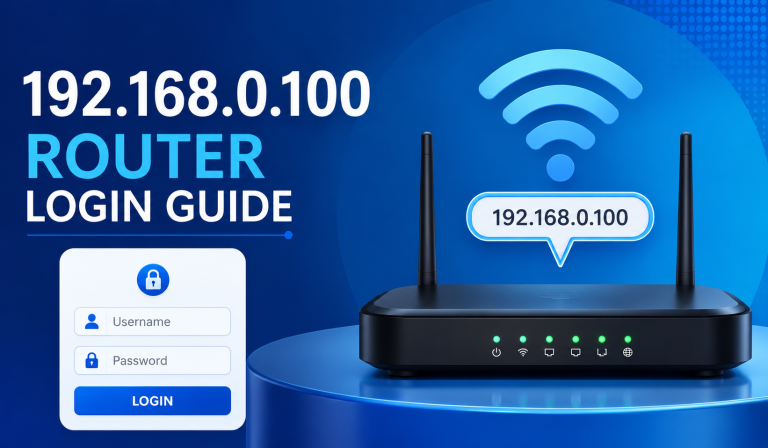
192.168.1.1 Router Login
192.168.1.1 is one of the most popular router IP addresses used to access router settings and manage network configurations. Through 192.168.1.1, you can change your Wi-Fi password, update security settings, view connected devices, and fix common network problems.
Many users see 192.168.1.1 on their router label but do not know how to use it. Fortunately, logging in is simple and only takes a few minutes.
192.168.1.1 Router Login
LoginWhat Is 192.168.1.1?
192.168.1.1 is a private IP address commonly used as the default gateway for routers. It allows users to access the router’s administration panel through a web browser. Router manufacturers use this address because it belongs to a private IP range reserved for local networks.
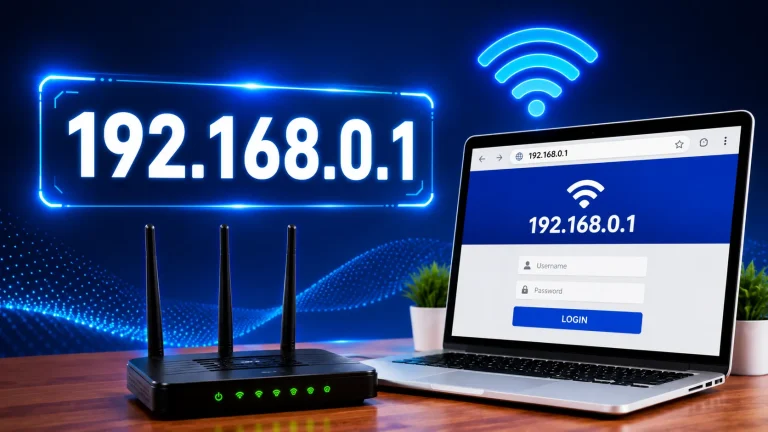
When you type 192.168.1.1 into your browser, you are not visiting a website. Instead, you are opening the login page of your router. After signing in, you can change network settings, update passwords, manage devices, and customize your Wi-Fi connection.
Quick Facts
| Feature | Details |
| IP Address | 192.168.1.1 |
| Type | Private IP Address |
| Purpose | Router Administration |
| Used By | TP-Link, Linksys, Netgear, ASUS and others |
| Access Method | Web Browser |
How to Login to 192.168.1.1
Logging into your router is a simple process. Follow these steps carefully.
Step 1: Connect to Your Router
First, make sure your device is connected to the router. You can connect using:
- Wi-Fi connection
- Ethernet cable connection
Without an active connection, you will not be able to access the router settings.
Step 2: Open a Web Browser
Open any web browser, such as:
- Google Chrome
- Mozilla Firefox
- Microsoft Edge
- Safari
Step 3: Enter 192.168.1.1
Type the following address into the browser address bar:
- 192.168.1.1
- Press Enter.
Step 4: Enter Your Login Credentials
A login page should appear. Enter your router username and password.
Many routers use default credentials such as:
- Username: admin
- Password: admin
Step 5: Access the Router Dashboard
After successful login, you will reach the router administration panel. From here you can:
- Change Wi-Fi settings
- Update passwords
- Manage connected devices
- Configure security options
- Update firmware
- Troubleshoot network problems
Default Username and Password for 192.168.1.1
Different router manufacturers use different login credentials. The following table shows some common default combinations.
| Router Brand | Username | Password |
| TP-Link | admin | admin |
| D-Link | admin | admin |
| Linksys | admin | admin |
| ASUS | admin | admin |
| Netgear | admin | password |
If these credentials do not work, check the label on your router or consult the user manual.
How to Change Your Wi-Fi Password
Changing your Wi-Fi password regularly helps protect your network from unauthorized access.
Steps to Change Wi-Fi Password
A strong password should include letters, numbers, and special characters.
How to Change Your Wi-Fi Network Name (SSID)
Your Wi-Fi name, also known as SSID, helps identify your network.
Steps
Choosing a unique network name makes it easier to identify your Wi-Fi among nearby networks.
How to Change the Router Admin Password
Many users forget to change the default admin password, which can create a security risk.
Steps
Common Login Problems and Solutions
192.168.1.1 Is Not Opening
Possible causes include:
- Wrong IP address
- Router connection problems
- Browser issues
Solutions:
- Restart the router
- Verify the IP address
- Use a different browser
- Connect directly using an Ethernet cable
Incorrect Username or Password
If your credentials are not working:
- Check the router label
- Review the user manual
- Try default login credentials
- Reset the router if necessary
Internet Connection Problems
Even if the internet is not working, you should still be able to access the router.
Try:
- Restarting the router
- Checking cables
- Reconnecting to Wi-Fi
Slow Loading Login Page
Solutions include:
- Clearing browser cache
- Restarting the router
- Updating router firmware
- Closing unnecessary browser tabs
How to Find Your Router IP Address
Sometimes 192.168.1.1 may not work because your router uses a different IP address. In that case, you can easily find the correct router IP address on your device.
Find Router IP on Windows
ipconfig
The number shown next to Default Gateway is your router’s IP address.
Find Router IP on Android
You will find the router IP listed under Gateway.
Find Router IP on iPhone
The number displayed is your router’s IP address.
Find Router IP on Mac
Router Brands That Commonly Use 192.168.1.1
Many router manufacturers use 192.168.1.1 as the default gateway. Below are some of the most popular brands.
TP-Link Routers
TP-Link is a popular router brand used in homes and offices worldwide. Many TP-Link models use 192.168.1.1 to access Wi-Fi settings, security options, and router management features.
Linksys Routers
Linksys routers are known for reliable performance and easy setup. Many models allow users to access wireless settings, connected devices, and parental controls quickly.
ASUS Routers
ASUS routers offer advanced networking features and strong security. Users can customize Wi-Fi settings, manage devices, and improve network performance with ease.
Netgear Routers
Netgear routers are widely used for home and business networks. Some models use 192.168.1.1 as the default login address for router administration.
D-Link Routers
D-Link routers provide simple network management tools and security features. Several models use 192.168.1.1 to access settings, firmware updates, and connected devices.
Important Security Tips for Router Users
Keeping your router secure helps protect your personal information and internet connection from unauthorized access.
Change Login Details
Many routers use default usernames and passwords that anyone can find online. Change your login details after setup to improve security and prevent unauthorized access.
Enable WPA2/WPA3
Always use WPA2 or WPA3 encryption to protect your Wi-Fi network. These security standards help keep your data safe from unauthorized users.
Update Firmware
Router manufacturers release firmware updates to improve performance, fix bugs, and patch security issues. Check for updates regularly to keep your router secure.
Turn Off WPS
WPS makes connecting devices easier but can create security risks. Disable this feature if you do not use it to improve protection.
Check Connected Devices
Review your connected devices regularly to ensure only trusted devices are using your network. Remove any unknown or suspicious connections immediately.
Create a Strong Wi-Fi Password
Avoid simple passwords such as:
- 12345678
- password
- admin123
Use a combination of uppercase letters, lowercase letters, numbers, and symbols.
192.168.1.1 vs 192.168.0.1
Many users are confused between these two IP addresses. Both are private IP addresses used for router administration.
| Feature | 192.168.1.1 | 192.168.0.1 |
| Type | Private IP | Private IP |
| Purpose | Router Login | Router Login |
| Security | Similar | Similar |
| Common Brands | TP-Link, Linksys | D-Link, Netgear |
| Functionality | Same | Same |
Frequently Asked Questions
What is 192.168.1.1 used for?
192.168.1.1 is used to access the router administration panel where users can manage Wi-Fi settings, passwords, security options, and connected devices.
Is 192.168.1.1 a public IP address?
No. It is a private IP address used only within local networks.
Why is 192.168.1.1 not opening?
This may happen because of an incorrect IP address, router connection issues, browser problems, or network configuration errors.
What should I do if I forget my router password?
You can try the default credentials or perform a factory reset to restore default settings.
How do I reset my router?
Press and hold the reset button on the router for about 10–15 seconds until the router restarts.
Can I change my Wi-Fi password using 192.168.1.1?
Yes. After logging in, go to Wireless Settings and update the password.
Which router brands use 192.168.1.1?
Popular brands include TP-Link, ASUS, Linksys, D-Link, and Netgear.
Is it safe to access 192.168.1.1?
Yes. It is the official method used to access router settings.
How often should I update my router firmware?
Check for updates every few months or whenever the manufacturer releases a security update.
How can I improve my router security?
Change default passwords, enable WPA2/WPA3 encryption, update firmware, disable WPS, and monitor connected devices regularly.
Final Thoughts
192.168.1.1 is one of the most important IP addresses for managing a home or office network. It provides direct access to your router settings, allowing you to change Wi-Fi passwords, update security options, manage connected devices, and troubleshoot network problems.
By understanding how to log in to 192.168.1.1 and properly secure your router, you can improve both the performance and safety of your internet connection. Regularly updating your router settings, using strong passwords, and keeping firmware up to date will help ensure a faster and more secure networking experience.