If you want to log in to 10.0.0.1 from your Mac, the process is quick and easy. Connect your Mac to the router or Piso WiFi network, open Safari or Chrome, and type http://10.0.0.1 in the address bar. This guide shows each step clearly and also explains how to fix common login problems if the page does not open.
Quick Answer: Sign in with admin / admin or a blank password. If it will not open, turn off any VPN, use http (not https), and clear your browser cache before reloading.
When to Use 10.0.0.1 on a Mac
You login to 10.0.0.1 to change settings or check your network. It is the admin address for many routers and Piso WiFi machines. A Piso WiFi machine is a coin-operated WiFi device popular in the Philippines. A Mac with its big screen makes these settings easy to manage.
On a Mac you might want to:
It is the same 10.0.0.1 admin login page owners use on any device.
Connect Your Mac First
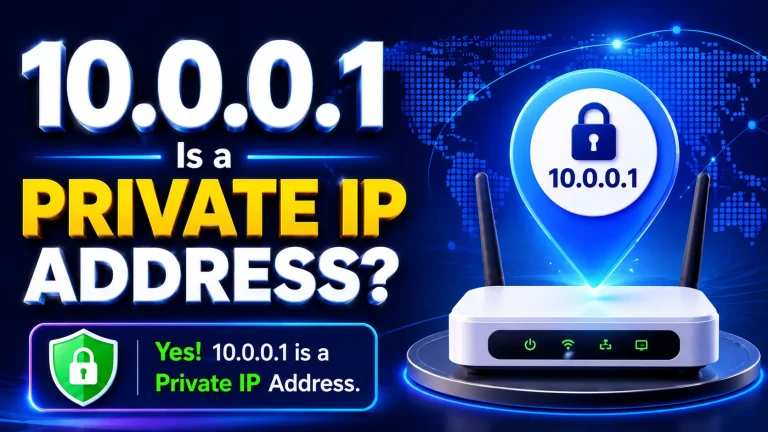
The address 10.0.0.1 only works on its own network. So join the router or Piso WiFi network before you try to login. It is a private IP address, so it never opens over the wider internet or a VPN.
A cable connection works too. Just plug your Mac into the router.
How Do You Login to 10.0.0.1 on Mac?
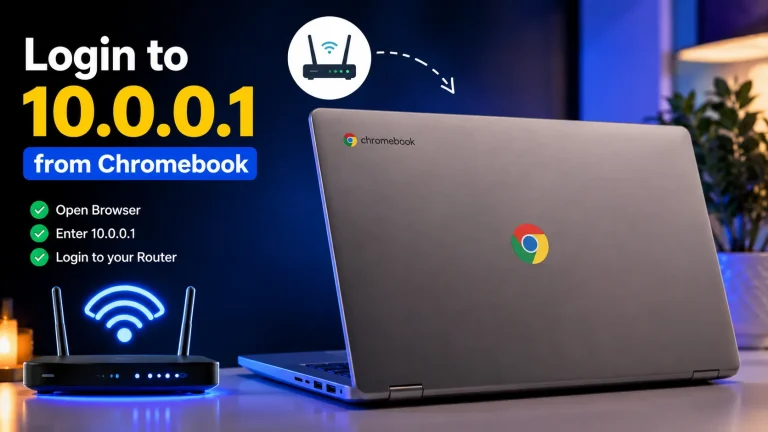
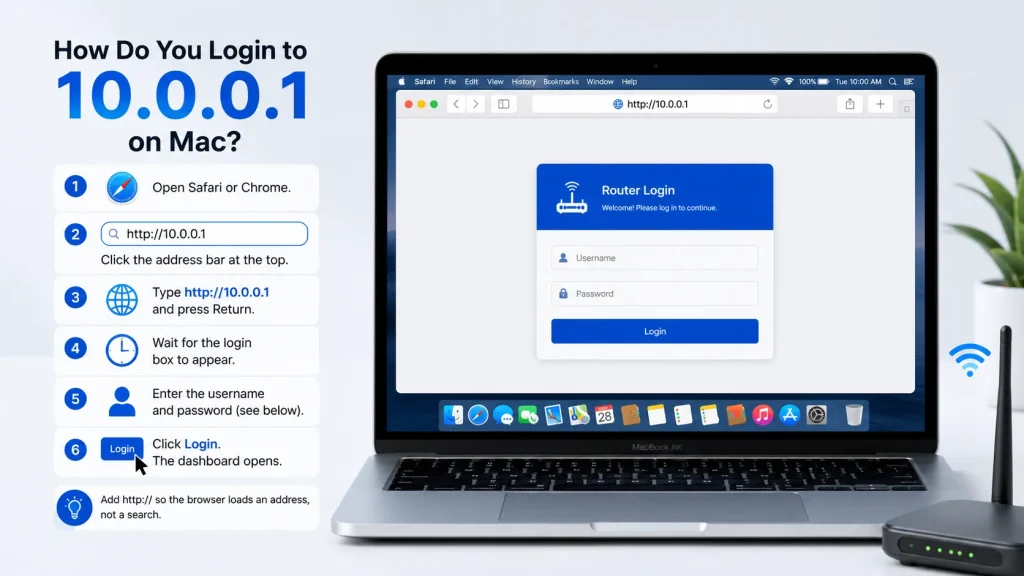
Open Safari or Chrome, click the address bar, and type http://10.0.0.1, then press Return. The login box appears in a moment. Enter the username and password, then click Login to open the dashboard. Add http:// so the browser loads an address, not a search.
Should You Use Safari or Chrome?
Both Safari and Chrome reach 10.0.0.1 fine, so pick the one you already use. Safari needs http:// in front or it searches the web instead. Chrome works best in a private window, which skips any saved cache that could load an old page.
| Browser | Tip |
|---|---|
| Safari | Type http:// in front so it does not search the web. |
| Chrome | Use a private window to avoid saved cache. |
Default Username and Password
Most routers and Piso WiFi machines ship with the username admin and the password admin, or a blank password. The exact login is often printed on the device sticker. If a custom password was set and lost, a factory reset on the device brings back the defaults.
Owners can also follow our LPB Piso WiFi setup steps to change these.
Why Is 10.0.0.1 Not Loading on Mac?
The usual causes are joining a guest network, typing https, or an active VPN. Confirm you are on the right WiFi, use http, and turn off the VPN. Then clear the cache or use a private window. Restarting both devices clears the rest.
Still stuck? Read our guides on login problems and common fixes.
Frequently Asked Questions
Does 10.0.0.1 work the same on Mac as Windows?
Yes. The address and login are the same. You just type http://10.0.0.1 in Safari or Chrome on your Mac.
Why does Safari search the web instead of opening 10.0.0.1?
Add http:// in front. Type http://10.0.0.1 so Safari treats it as an address, not a search.
What is the default router login password?
It is usually admin or blank. Check the sticker on your device, and reset it if a custom password was set and lost.
My Mac connects but 10.0.0.1 will not open. Why?
Turn off any VPN, use http not https, and clear your cache. If it still fails, restart the router and your Mac.
Conclusion
Logging in to your router from a Mac is simple when you are connected to the correct network and use http://10.0.0.1 in Safari or Chrome. If the page does not open, check your WiFi connection, turn off any VPN, and clear your browser cache. These easy steps help you access and manage your router or Piso WiFi settings quickly.