Parental controls help you manage how your home internet is used. After logging in to 10.0.0.1, you can block websites, set internet time limits, and restrict access for specific devices. These settings are useful for keeping children safe online and reducing screen time. This guide explains the simple steps to enable parental controls through the 10.0.0.1 router admin page using easy-to-follow instructions.
Quick Answer: Connect to your router, open the router login page in any browser, and sign in to the admin panel. Inside, you can block unsafe websites, set bedtime and daily time limits, and pause a single device during meals or homework. Use a strong admin password so kids cannot undo the rules.
What Do Parental Controls on 10.0.0.1 Do?
Parental controls are built-in router rules that keep kids safer online. You manage them from your router’s settings page. They let you decide what each device can reach and when. You block bad sites, set limits, and pause WiFi, all in one place.
These rules apply per device, so adults stay unaffected.
Turning On Parental Controls
Open a browser and visit your router’s login address., and sign in with your admin details. Find the Parental Controls menu, switch it on, then pick your child’s device. The router now enforces your rules on that device. The whole setup takes about two minutes.
Need the sign-in steps first? Open the 10.0.0.1 admin login page.
How Do You Block Websites for a Child?
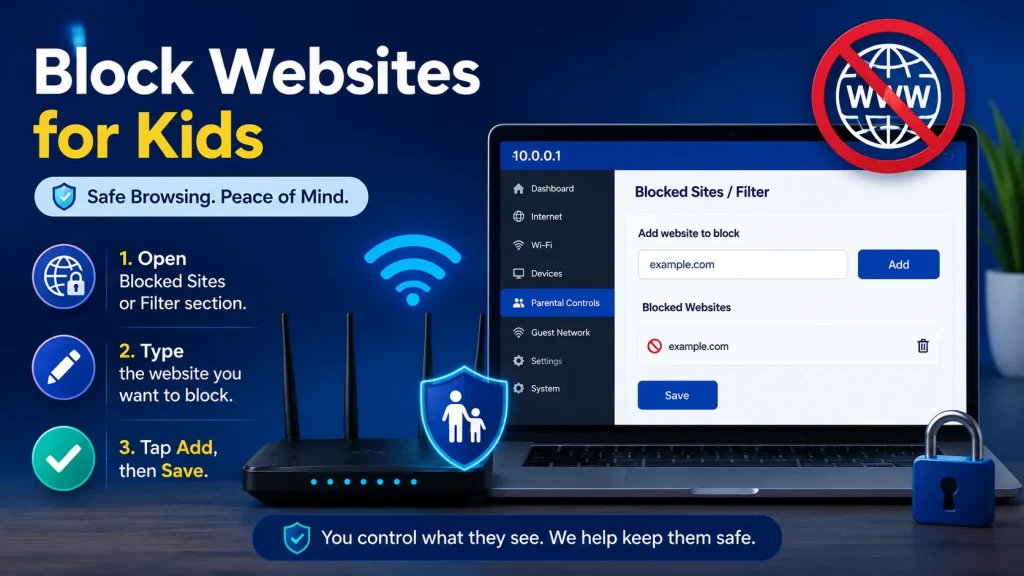
Open the Blocked Sites or Filter section in the panel. Type the website address you want to block, then tap Add and Save. The router stops that device from loading the site. You can add as many sites as you like.
Some routers also have a one-click family filter mode for known adult content.
Setting Internet Time Limits
Use the schedule tools inside Parental Controls to control when WiFi works. You can set allowed hours, a nightly bedtime cutoff, or a daily cap. Pick the rule that fits your family, then save it to the child’s device. The internet turns off automatically during blocked hours.
| Setting | What It Does |
|---|---|
| Schedule | Sets the hours WiFi is allowed. |
| Bedtime | Cuts internet at night. |
| Daily limit | Caps total hours per day. |
Pick a schedule, then save it for the child’s device.
Pausing a Single Device
Most modern routers show a Pause button next to each connected device. Tap it to cut that device’s internet right away, without touching anyone else. Tap it again to bring the internet back. It is the fastest way to call kids to dinner.
The pause is instant and needs no app. The device stays connected to WiFi but cannot reach the internet until you resume it.
What Extra Tips Help Parents Stay in Control?
Small habits make parental controls far harder to bypass. Set a strong admin password so kids cannot open 10.0.0.1 and change rules. Add a safe DNS for an extra filter layer. Restart the router if a setting will not save. These steps keep your controls reliable.
Frequently Asked Questions
How do I block a website for my child at 10.0.0.1?
Log in at 10.0.0.1, open Parental Controls, and add the site under Blocked Sites. Save to apply it to the chosen device.
Can I set internet bedtime hours on my router?
Yes. Most routers let you set a schedule or bedtime. The internet turns off for that device during the chosen hours.
Will my child be able to turn off parental controls?
Not if you set a strong admin password. Without it they cannot reach the 10.0.0.1 settings to change the rules.
Do parental controls slow down the internet?
No. They only filter or schedule access. Speed for allowed devices and sites stays the same.
Can I pause WiFi for just one device?
Yes. Most modern routers have a Pause button next to each device in the connected list.
Final Thoughts
Using parental controls through 10.0.0.1 is an easy way to keep your family safer online. You can block websites, set internet schedules, and manage each device in just a few minutes. Keep your router password secure and review your settings regularly to make sure the rules continue to match your family’s needs.