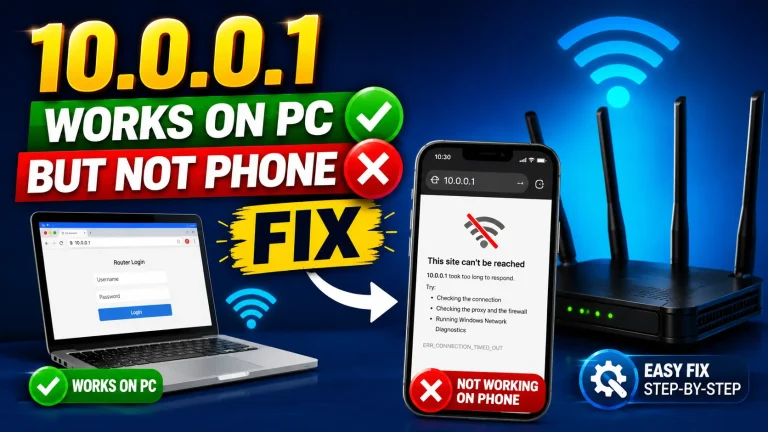
If the 10.0.0.1 login page is not loading on your phone, the problem is usually related to your WiFi connection, browser settings, or an incorrect address. In most cases, it is easy to fix.
📋 Contents
- Why 10.0.0.1 Won’t Load on Your Phone
- Turn Off Mobile Data First
- Step-by-Step Phone Fixes
- What to Do on Android and iPhone
- Randomized MAC and Private WiFi
- When It Still Won’t Load
- Frequently Asked Questions
Quick Answer: The top cause is mobile data being on, which makes the phone bypass the WiFi. Turn mobile data OFF, stay on the Piso WiFi network, and reload http://10.0.0.1 (not https). If it still fails, clear the cache, disable any VPN, and switch off the phone’s private (random) MAC address for that network.
Why Won’t the Login Page Load on Your Phone?
Phones often send the request the wrong way, so the page stays blank. The most common cause is mobile data being on, which makes the phone bypass the WiFi. Typing https or holding a stale cache can also block it. A VPN is the fourth common cause.
- Mobile data is still on, so the phone bypasses WiFi.
- You typed https instead of http.
- Old cache data is stuck.
- A VPN is blocking local pages.
How Do You Turn Off Mobile Data First?
This is the single most common fix. Your phone must use WiFi, not cellular data, to reach a local page. Open your settings and turn mobile data off. Stay on the Piso WiFi network, then reload the address.
- Open your phone settings.
- Turn mobile data OFF.
- Stay connected to the Piso WiFi network.
- Reload http://10.0.0.1.
A Piso WiFi machine is a coin-operated WiFi device used widely in the Philippines.
What Are the Step-by-Step Phone Fixes?
If turning off data did not work, a few more checks usually do. Use the http prefix so the browser does not force HTTPS. Clear the cache, disable any VPN, and rejoin the WiFi. The table pairs each fix with the reason it helps.
| Try This | Why It Helps |
|---|---|
| Use http://10.0.0.1 | Local pages do not use https |
| Clear cache / incognito | Removes stuck old data |
| Turn off VPN | VPNs block local IPs |
| Forget and rejoin WiFi | Fixes a bad connection |

What Should Android and iPhone Users Check?
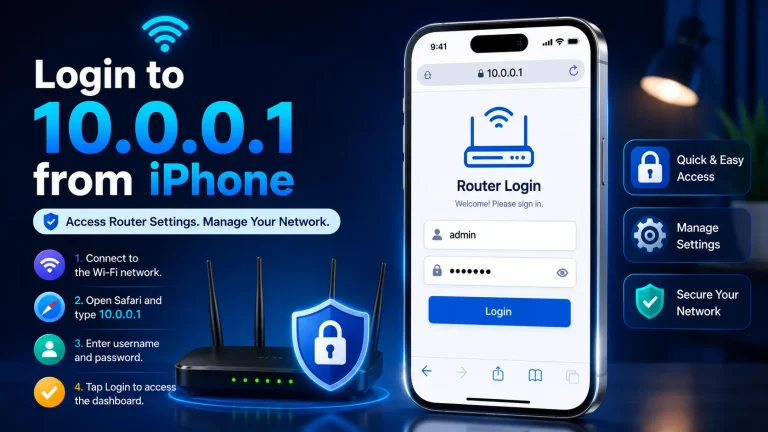
On modern Android and iPhone in 2026, a login pop-up may appear by itself when you join. If it does, sign in right there. If no pop-up shows, open your browser and type the address by hand. Try a different browser if one keeps failing.
Both phone types behave the same way for local pages. The browser is the reliable path when the pop-up does not appear.
Can a Randomized MAC Block the Login Page?
Yes. New phones use a random MAC address for privacy by default. Some Piso WiFi machines do not recognise it and block the page. Switch the network to use your real device MAC, then reconnect and reload.
- Open the WiFi network settings.
- Find the Private WiFi or MAC option.
- Switch it to use your real (device) MAC.
- Reconnect and reload the login page.
More tips are in our page-not-working fixes.
What If It Still Won’t Load?
If the page still fails, test the network with another phone. If that phone works, the fault is on your first device. Then restart the machine to clear a frozen portal. Once it loads, you can access the router’s admin login page.
See also our guides for a refused connection and for when you cannot access the panel.
Reference: Default gateway (Wikipedia).
Frequently Asked Questions
Why is 10.0.0.1 not loading on my phone?
Mobile data is often the cause. Turn it off, stay on the WiFi, use http://10.0.0.1, and clear your cache.
Do I need to turn off mobile data?
Yes. With data on, the phone may skip the WiFi. Turn it off so 10.0.0.1 loads through the network.
Can a random MAC address block the login page?
Yes. New phones use private WiFi by default. Switch to your real MAC in the WiFi settings, then reconnect.
Should I use http or https on my phone?
Use http://10.0.0.1. Local router and Piso WiFi pages do not support https.
What if the page still won’t open?
Try another phone or browser, turn off any VPN, and restart the machine. Then reload the page.
Conclusion
If the 10.0.0.1 login page is not loading on your phone, the problem is usually easy to solve. Turn off mobile data, stay connected to the correct WiFi network, use http://10.0.0.1, clear your browser cache, and disable any VPN. If the page still does not open, restart the device or try another phone or browser to identify the cause.