If you want to log in to 10.0.0.1 from your iPhone, the process is quick and simple. Connect your iPhone to the router’s WiFi, open Safari, and enter http://10.0.0.1 in the address bar. Follow this guide to learn each step and fix common login issues when the page does not load.
Quick Answer: Sign in with admin / admin or a blank password. If the page will not load, turn off Private Wi-Fi Address for that network, switch off cellular data, and use http (not https).
What 10.0.0.1 Does on an iPhone
10.0.0.1 is the web address that opens the admin page for many routers and Piso WiFi machines. A Piso WiFi machine is a coin-operated WiFi device common in the Philippines. You type it into a browser to manage your network settings from your iPhone.
From this page you can:
- Change the WiFi name or password.
- Pause your Piso WiFi time.
- Check the devices on your network.
It is the same 10.0.0.1 admin login page owners use daily.
Connect Your iPhone First
The router login page only works on its own network. So you must join the router or Piso WiFi network before you try. Turning off cellular data forces your iPhone to use that WiFi. This single step fixes most loading problems on iOS.
How Do You Login to 10.0.0.1 in Safari?
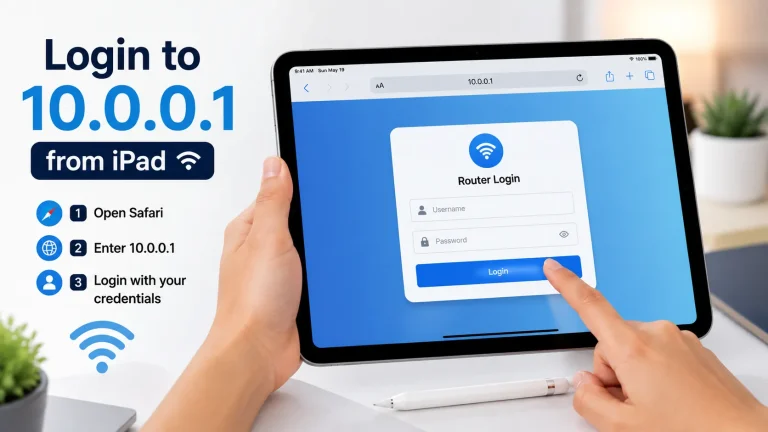
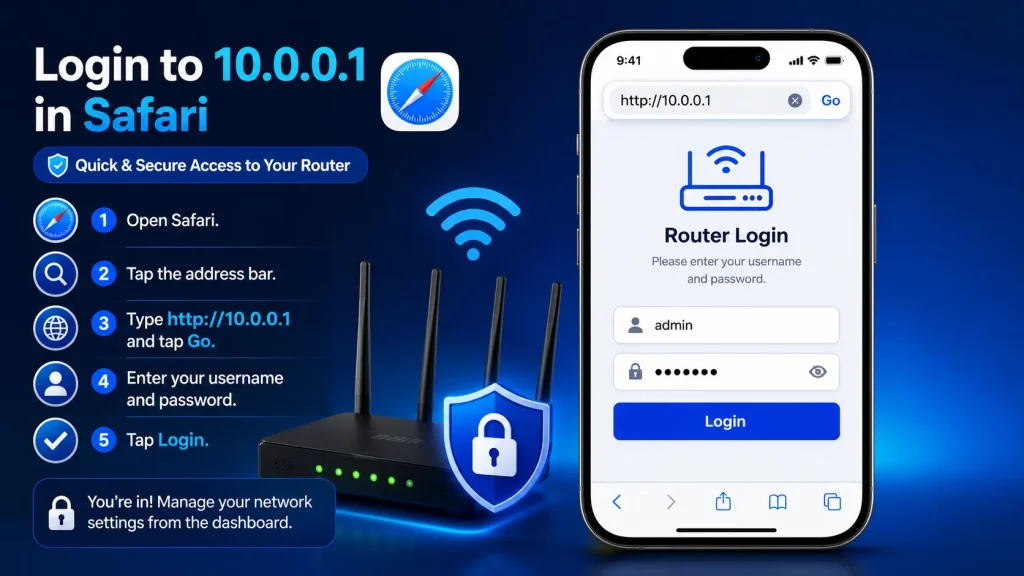
Open Safari, tap the address bar, and type http://10.0.0.1, then tap Go. The login box appears in seconds. Enter the username and password, then tap Login to reach the dashboard. Always add http:// so Safari opens an address, not a web search.
Why Does Private Wi-Fi Address Block 10.0.0.1?
iPhones use a Private Wi-Fi Address by default. This rotating MAC address can confuse some Piso WiFi machines and admin pages, so the portal will not load. Turning it off for that one network gives your iPhone a fixed address the device recognises.
Apple explains this setting in its private Wi-Fi address support page.
Default Username and Password
Most routers and Piso WiFi machines ship with the username admin and the password admin, or a blank password. The exact login is often printed on the device sticker. If a custom password was set and lost, a factory reset restores these defaults.
| Field | Common Default |
|---|---|
| Username | admin |
| Password | admin or blank |
New to the admin panel? Read our LPB Piso WiFi setup steps.
Why Is 10.0.0.1 Not Loading on iPhone?
The usual causes are being on cellular data, typing https, or an active VPN. Confirm you are on the WiFi network, use http, and switch off any VPN. Then clear Safari history or open a Private tab. These four checks fix almost every iPhone login error.
Still stuck? See why you can’t access 10.0.0.1 and our guide to common Piso WiFi login problems.
Frequently Asked Questions
Why will 10.0.0.1 not open on my iPhone?
Often the Private Wi-Fi Address setting blocks it. Turn it off for that network, reconnect, then try http://10.0.0.1 again.
Which browser should I use on iPhone?
Safari works well. Chrome works too. Just type http://10.0.0.1 so it opens as an address, not a search.
What is the default router username and password?
Usually admin with admin or a blank password. Check the sticker on the device for the exact details.
Should I turn off cellular data before logging in?
It helps. Turning cellular data off forces your iPhone to use the WiFi network where 10.0.0.1 is found.
Conclusion
Logging in to 10.0.0.1 from an iPhone is simple when you follow the correct steps. Connect to the right WiFi network, use http://10.0.0.1 in Safari, and enter the correct login details. If the page does not open, check your WiFi connection, turn off Private Wi-Fi Address, and try the quick fixes in this guide.