A 10.0.0.1 connection timed out error means your browser waited too long and the page never answered.
📋 Contents
- What Timed Out Means
- Common Causes
- Fast Fixes
- Step-by-Step Fix
- Confirm the Correct IP
- Last Resort Steps
- Frequently Asked Questions
Quick Answer: It almost always points to a local connection problem, not a broken page. Turn off mobile data, stay on the device’s WiFi, and type http://10.0.0.1 (not https). Disable any VPN, then reload. If it still times out, confirm 10.0.0.1 is your real gateway IP and power-cycle the router or Piso WiFi board.
What Does “Timed Out” Mean?
“Connection timed out” means your browser waited too long for a reply. It asked 10.0.0.1 to load, but no answer came back. So it stopped and showed the timeout. This is a connection problem, not a broken admin page on the device. Note that 10.0.0.1 is a private IP address that only answers on your local network.
What Are the Common Causes?
A timeout at 10.0.0.1 usually traces to a short list of causes. Most come down to the wrong network or a frozen device. A VPN, a forced HTTPS redirect, or the wrong gateway IP can also be to blame. Check each one below.
What Are the Fast Fixes?
Start with the quick wins that clear most timeouts. Turn off mobile data so the request stays on the local WiFi. Type the address with the http prefix. Reload once, and turn off any VPN. These four checks fix the majority of cases.
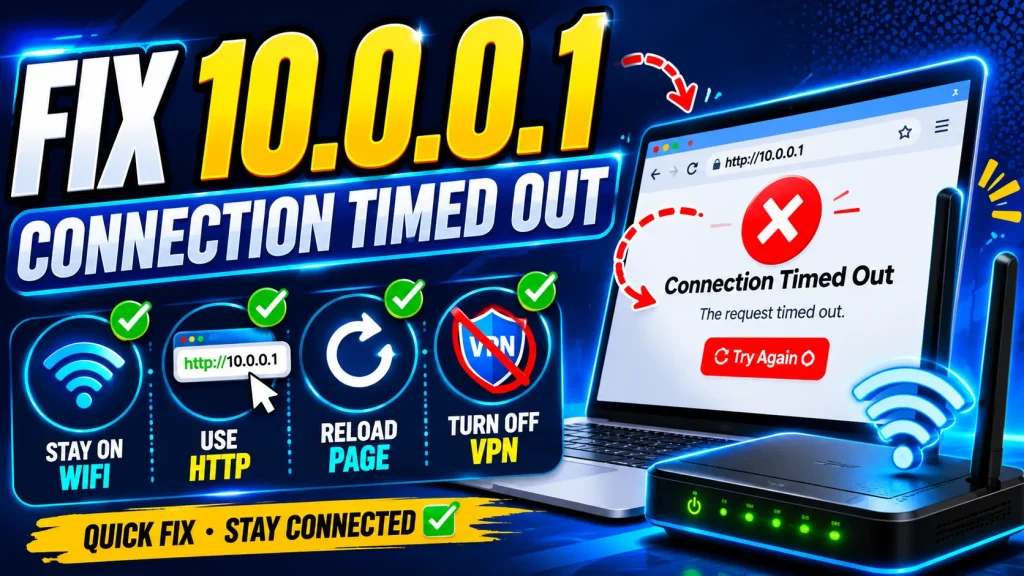
These clear most timeouts before you reach the 10.0.0.1 admin login page.
How Do You Fix It Step by Step?
If the fast fixes fail, work through a fuller sequence. Confirm the network, then clear cached data that may block the page. Restart the router or board to wake a frozen web service. Finally, test a second browser or device to isolate the fault.
Is 10.0.0.1 the Correct IP?
If 10.0.0.1 is not your real gateway, it will always time out. So confirm the address your device actually uses. Each platform shows it in a slightly different place. The table below points you to the right field on each one.
| Device | Check the Gateway |
|---|---|
| Windows | Run ipconfig, read Default Gateway |
| Android | WiFi network details, view Gateway |
| iPhone | WiFi info (i), read Router |
Worried about a typo? See our 10.0.0.1 spelling explainer.
What Are the Last Resort Steps?
If nothing above works, a few final steps remain. A connection that is actively rejected needs a different fix from a slow timeout. A full checklist can catch a cause you missed. Reset the device only as the very last option.
Frequently Asked Questions
Why does 10.0.0.1 say connection timed out?
Your browser waited but got no reply from the router or board. Usually you are on the wrong network or the device is frozen.
How do I fix the 10.0.0.1 timeout?
Turn off mobile data, use http (not https), restart the router, and confirm 10.0.0.1 is your real gateway IP.
Is 10.0.0.1 always the right address?
No. Check your Default Gateway. Some routers use 192.168.1.1 or 192.168.0.1 instead of 10.0.0.1.
Can a firewall cause a timeout?
Yes. A firewall, VPN, or proxy can block the local request. Turn them off and try the page again.
Should I reset the router?
Only as a last step. A reset erases your settings, so try a normal restart first.
Conclusion
A 10.0.0.1 connection timed out error is usually caused by a local network issue, not a faulty router page. Make sure you are connected to the correct WiFi, use http://10.0.0.1, disable any VPN, and confirm the gateway IP. If the problem continues, restart your router or Piso WiFi device before trying a factory reset.