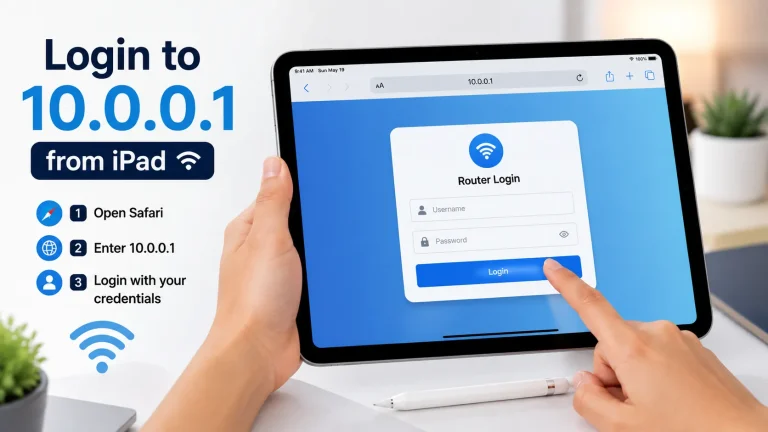
Logging in to 10.0.0.1 from a Windows PC is quick and easy. Connect your computer to the router or Piso WiFi network, open a browser, and enter http://10.0.0.1 in the address bar. Here we explain each step clearly and also shows how to fix common login problems if the page does not open or you cannot access the admin panel.
Quick Answer: Sign in with the admin username and password, usually admin / admin or blank. If the page will not load, run ipconfig in Command Prompt and read the Default Gateway line. That number is your true router address, so type it in the browser instead.
When a Windows PC Helps
A Windows PC makes the 10.0.0.1 admin page easier to use than a phone. The larger screen shows every setting clearly. A keyboard speeds up typing passwords and rates. It is also a reliable backup when your phone will not load the page at all.
- A larger screen is easier to read.
- Typing settings is faster on a keyboard.
- It is handy when your phone will not load the page.
How Do You Log In From Windows?
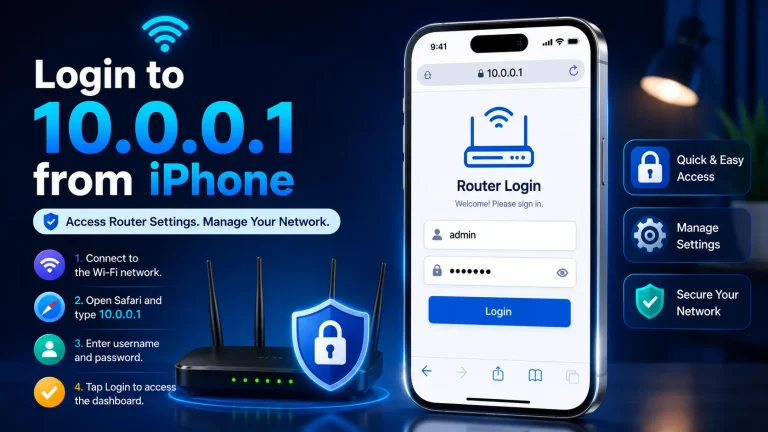
Connect your PC to the network, open a browser, and type http://10.0.0.1. The login page opens in seconds. Enter your admin username and password, then click Login. This opens the same dashboard you would see on a phone, just on a bigger, easier screen.
- Connect the PC to your WiFi or by cable.
- Open a browser like Edge or Chrome.
- Type http://10.0.0.1 and press Enter.
- The login page opens.
- Type your admin username and password.
- Click Login.
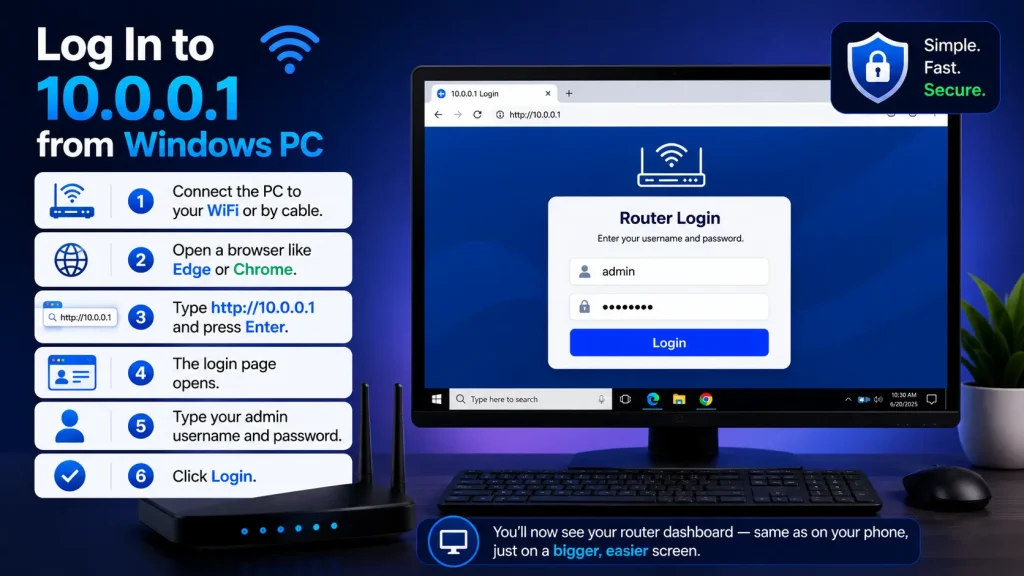
This opens the same 10.0.0.1 admin login page you use on a phone.
Finding Your Gateway IP
If 10.0.0.1 does not open, your router may use a different address. Windows shows the real one in seconds using the ipconfig command. Open Command Prompt, run ipconfig, and read the Default Gateway line. Type that number in your browser to reach the correct admin page.
- Press Windows + R, type cmd, press Enter.
- Type ipconfig and press Enter.
- Read the Default Gateway line.
- Type that number in your browser instead.
Microsoft explains this in its ipconfig command guide.
Default Login Details
Most routers ship with the username admin and a password of admin, password, or blank. The exact pair is usually printed on a sticker on the router. If the password was changed and then forgotten, a factory reset restores these defaults.
| Field | Common Default |
|---|---|
| Username | admin |
| Password | admin, password, or blank |
Check the sticker on your router for the exact details.
Which Browser Settings Help on Windows?
A few small browser tweaks stop most login problems on Windows. Always use http, never https, since router pages rarely support https. An InPrivate window skips old cached data. Clearing the cache and disabling any VPN also helps the page load cleanly the first time.
- Always use http://, not https.
- Try an InPrivate or incognito window.
- Clear the cache if the page looks broken.
- Turn off any VPN while you log in.
Why Won’t 10.0.0.1 Open on Your PC?
The usual causes are being on the wrong network, a https typo, or an active VPN. Confirm the PC is on the correct WiFi or cable connection first. Switch to http and turn off any VPN. If the page is still stuck, restart the router and reload.
- Make sure you are on the right network.
- If 10.0.0.1 is not working, restart the router.
- For browser errors, see how to fix a refused connection.
Frequently Asked Questions (2026)
How do I log in to 10.0.0.1 on a Windows PC?
Connect to your network, open a browser, and type http://10.0.0.1. Enter your admin username and password, then click Login.
What is the default login for 10.0.0.1?
The username is usually admin. The password is often admin, password, or blank. Check the sticker on your router.
10.0.0.1 will not open on my PC. What do I do?
Run ipconfig in Command Prompt and read the Default Gateway line. Type that address in your browser instead.
Should I use http or https for 10.0.0.1?
Use http://10.0.0.1. Most router pages do not use https, so https can cause an error.
Why does my VPN block 10.0.0.1?
A VPN can route your traffic away from the local router. Turn the VPN off while you log in, then turn it back on after.
Conclusion
Logging in to 10.0.0.1 from a Windows PC is simple when you follow the correct steps. Connect to the right network, use http://10.0.0.1, and enter the correct admin details. If the page does not open, check your Default Gateway with ipconfig, disable any VPN, and try again. These quick steps solve most login problems.