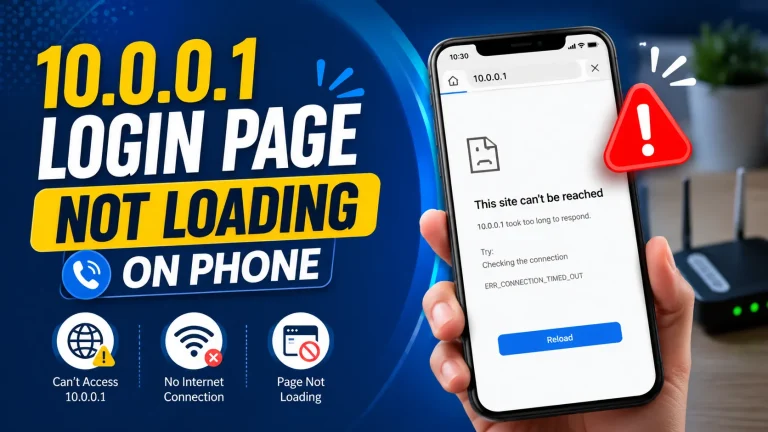
If you cannot access the 10.0.0.1 login page because you forgot the password or changed the settings, resetting your router may help. A factory reset restores the device to its default settings, including the default login details. After the reset, you can sign in again and set up your router or Piso WiFi device from the beginning.
Quick Answer: Hold the recessed reset button with a pin for 10–15 seconds while the device is on, wait for it to reboot, then open http://10.0.0.1 and sign in with admin / admin (or a blank password). A reset erases your WiFi name, password, and time rates, so use it only when normal fixes fail.
When Should You Reset to Access 10.0.0.1?
Reset only when normal fixes fail to restore 10.0.0.1. It is the right move if you forgot the admin password, the login page is frozen, or the device acts strangely after a change. A reset is powerful but final, so treat it as your last resort.
First, try simpler fixes in our guide to a 10.0.0.1 page that won’t load.
What to Know Before You Reset
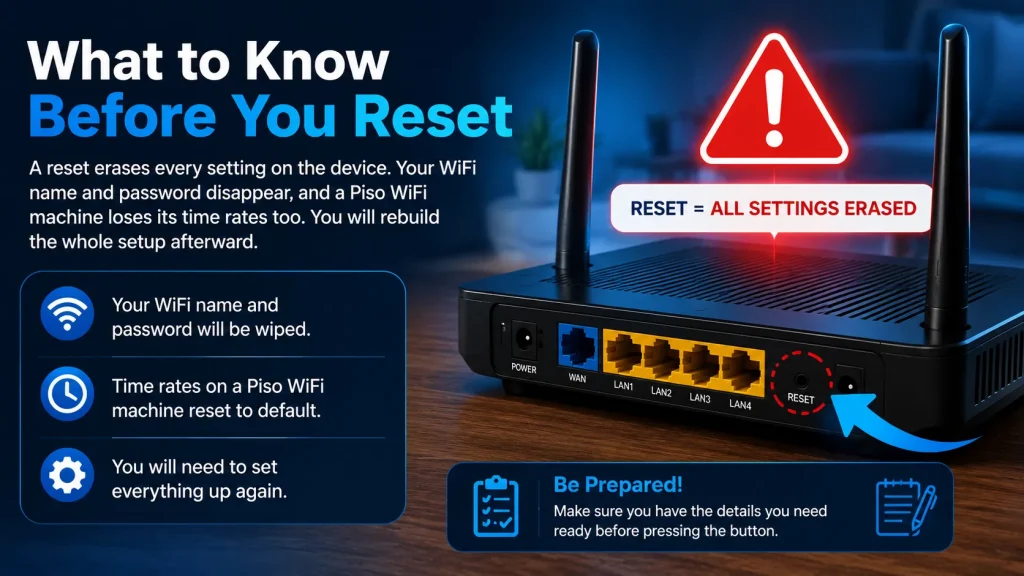
A reset erases every setting on the device. Your WiFi name and password disappear, and a Piso WiFi machine loses its time rates too. You will rebuild the whole setup afterward. Make sure you have the details you need ready before pressing the button.
A Piso WiFi machine is a coin-operated WiFi device used across the Philippines.
How Do You Factory Reset the Device?
Find the small reset button, usually a tiny recessed hole on the back. Keep the device powered on, then press and hold the button with a pin for 10 to 15 seconds. The lights blink and the device restarts. Wait one to two minutes for it to fully boot.
Need the password steps too? See how to recover a forgotten 10.0.0.1 password.
Logging In After the Reset
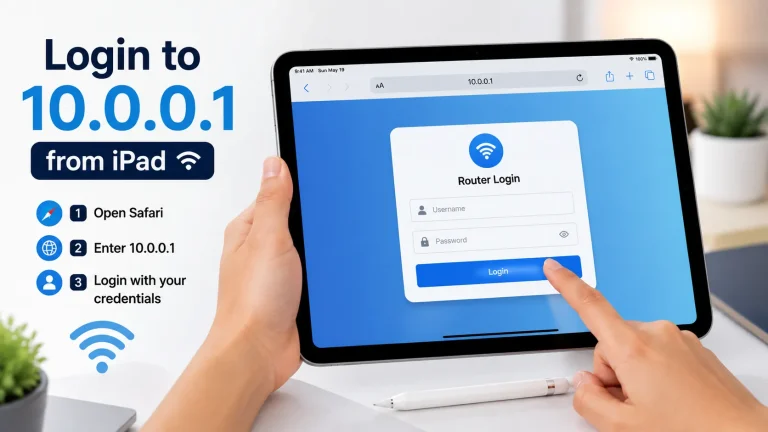
Once the device reboots, reconnect to its WiFi and open http://10.0.0.1 in a browser. Enter the default username and password, then set a new strong password right away. This locks the panel before anyone else can reach it on the fresh factory defaults.
This opens the 10.0.0.1 admin login page.
What Is the Default Login After a Reset?
After a reset, most devices use the username admin with the password admin or a blank password. If that fails, the real default is usually printed on a sticker on the device itself. The table below shows the common values to try first.
| Field | Default |
|---|---|
| Address | http://10.0.0.1 |
| Username | admin |
| Password | admin (or blank) |
If admin/admin fails, check the sticker on the device for the printed login.
How Do You Avoid Resetting Again?
Prevent another reset by managing the device carefully from now on. Write down your new password and store it somewhere safe. Change settings slowly, one at a time, so you can undo a mistake. Keep the firmware updated in 2026 to stay stable and secure.
If 10.0.0.1 still fails, see why the connection is refused, or read how a factory reset works.
Frequently Asked Questions
How do I reset my router to access 10.0.0.1?
Hold the reset button with a pin for 10 to 15 seconds while it is on. The device restarts with the default login.
Will a reset delete my settings?
Yes. It wipes the WiFi name, password, and any custom settings. You set everything up again afterward.
What is the login after a reset?
Usually admin / admin or a blank password. Check the sticker on the device if that fails.
How long does a factory reset take?
About 10 to 15 seconds to trigger, then one to two minutes for the device to restart fully.
Where is the reset button?
It is a small recessed hole on the router or Piso WiFi machine. Use a pin or paperclip to press it.
Conclusion
Resetting your router or Piso WiFi device is an effective way to restore access to the 10.0.0.1 admin page when other troubleshooting steps do not work. Remember that a factory reset removes all custom settings, so use it only as a last option. After the reset, log in with the default credentials, create a strong password, and reconfigure your network to keep it secure and working properly.