Restarting your router from the 10.0.0.1 admin page is a quick way to fix temporary internet or WiFi problems. A reboot refreshes the system without deleting your saved settings, WiFi name, or password.
Simply log in to the 10.0.0.1 admin panel, find the reboot option, and restart the device. After a minute or two, the router comes back online, and you can reconnect to the internet as usual.
Quick Answer: Log in at http://10.0.0.1, open System or Maintenance, and click Reboot; WiFi returns in about two minutes. You can also unplug the router for 30 seconds. A reboot fixes slow or dropped WiFi fast and, unlike a reset, never erases your WiFi name or password. Reboot for everyday fixes; reset only as a last resort.
When Should You Reboot Your Router?
Reboot your router when WiFi turns slow, laggy, or keeps dropping out. A restart clears small memory glitches and refreshes the connection to your provider. It is the fastest fix for most everyday WiFi problems, and it keeps every one of your settings intact.
How Do You Reboot From the 10.0.0.1 Page?
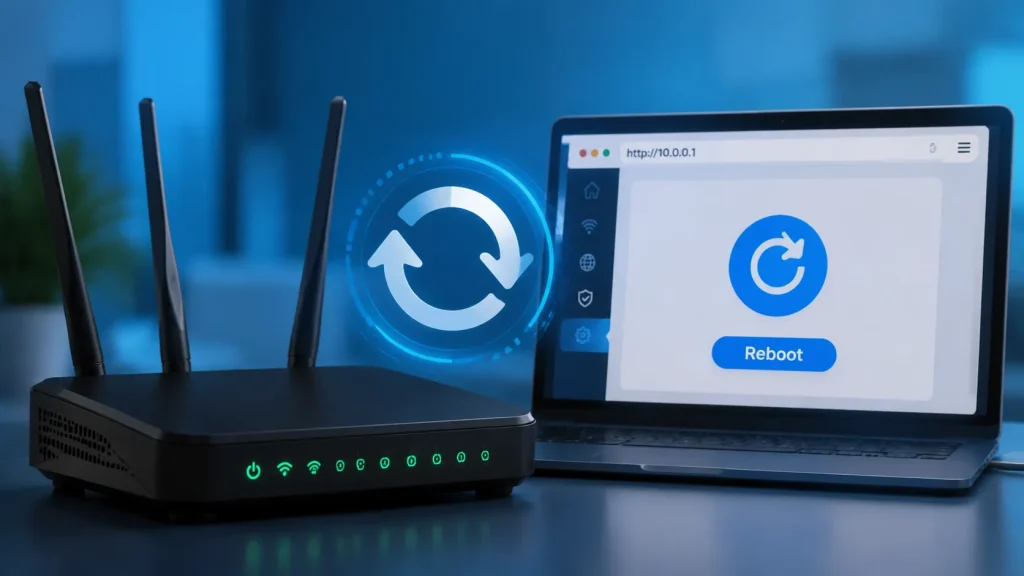
Log in at 10.0.0.1, open the System, Tools, or Maintenance menu, and click Reboot. The router shuts down and restarts on its own. Wait about two minutes, then reconnect once the front lights settle back to their normal pattern.
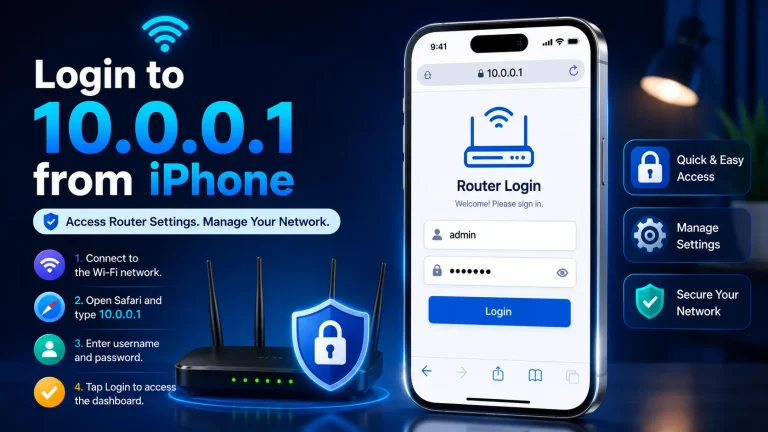
Need to sign in first? Open the 10.0.0.1 admin login page.
Rebooting by Power Instead
You can also reboot without opening the admin page at all. Simply unplug the router from power, wait 30 seconds, then plug it back in. This power cycle does the same job as the menu reboot, and it is handy whenever you cannot reach 10.0.0.1.
Reboot vs Reset: The Difference
A reboot restarts the router and keeps all your settings. A reset erases everything and returns the router to factory defaults. So a reboot is safe for daily fixes, while a reset wipes your WiFi name, password, and custom rules. The table makes the contrast clear.
| Action | What Happens |
|---|---|
| Reboot | Restarts router. Keeps all settings. |
| Reset | Erases settings. Back to factory defaults. |
Use a reboot for everyday fixes. Need the full wipe instead? See our router factory reset guide.
Can You Schedule Automatic Reboots?
Yes. Many 2026 routers can reboot on a timer straight from the admin page. Set one for the early morning while you sleep, so nobody notices the brief drop. A weekly auto-reboot keeps WiFi fast and steady without you lifting a finger again.
Look for a Scheduled Reboot option under System or Maintenance. Pick a quiet hour and a day, then save the schedule.
What If Your Router Still Has Problems?
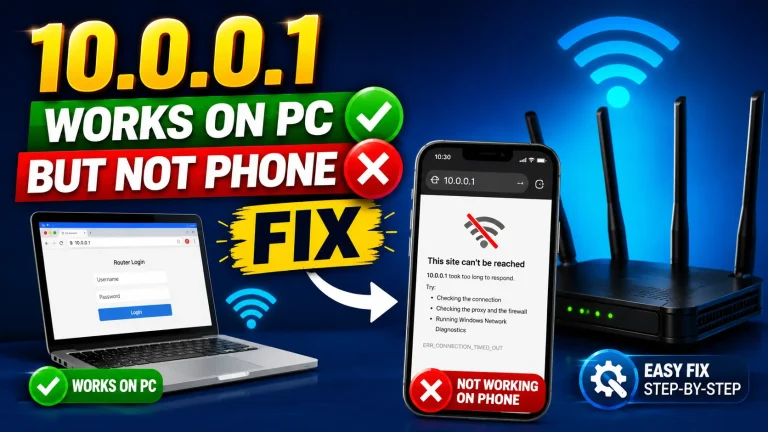
If a reboot does not fix it, check the basics next. Make sure every cable is snug and the lights look normal. If 10.0.0.1 itself will not open, reconnect to the router’s WiFi first. Persistent issues may point to your provider or failing hardware instead.
Frequently Asked Questions
How do I reboot my router from 10.0.0.1?
Log in at 10.0.0.1, open System or Maintenance, and click Reboot. Wait about two minutes for WiFi to return.
Is rebooting the same as resetting my router?
No. A reboot restarts the router and keeps your settings. A reset erases everything back to factory defaults.
Will a reboot delete my WiFi password?
No. A reboot keeps all your settings, including your WiFi name and password. Only a reset erases them.
How long does a router reboot take?
Usually about one to two minutes. Wait for the lights to settle before testing your WiFi again.
Should I reboot my router regularly?
An occasional reboot helps if WiFi gets slow. Many routers can auto-reboot weekly on a timer for steady speed.
Conclusion
Rebooting your router through the 10.0.0.1 admin page is a simple and safe way to fix common WiFi issues like slow speed or connection drops. It refreshes the system without changing any saved settings. Unlike a factory reset, it does not erase your WiFi name or password. Regular reboots can help keep your internet stable, fast, and reliable for everyday use without extra effort.