
If you want to change your WiFi password, update your network name, or manage your internet settings, you first need to access your router’s admin page. Huawei Router Login is a simple process that only takes a few minutes when you use the correct IP address and login details.
Most Huawei routers can be accessed through a web browser using the default gateway address. Once you sign in, you can manage your wireless settings, connected devices, parental controls, security options, and many other features.
Quick Answer
To complete a Huawei Router Login, connect your device to the Huawei router using WiFi or an Ethernet cable. Open any web browser and enter your router’s IP address, such as 192.168.3.1 or 192.168.1.1. Enter the correct username and password, then click Log In to open the router’s admin dashboard.
Huawei Router Login Addresses
Select the correct IP address to open your Huawei router admin page.
Common Huawei Login Details
Login Option 1
Login Option 2
Vodafone Setup
Alternative Admin Login
What You’ll Need Before Logging In
Before starting the Huawei Router Login process, make sure you have the following:
Once everything is ready, you can log in within a few minutes.
How to Log In to a Huawei Router
Follow these simple steps to access your Huawei router settings.
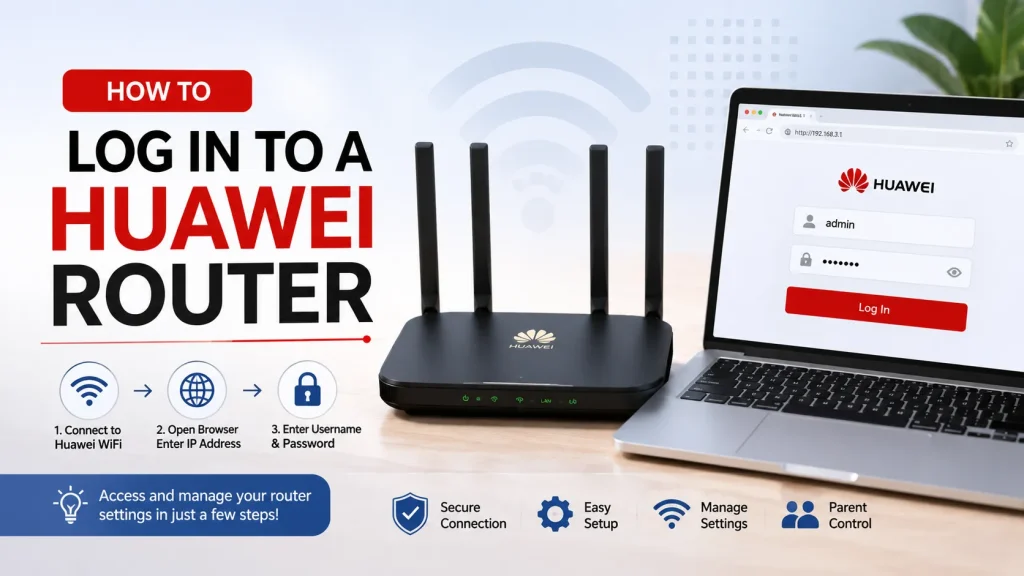
Step 1: Connect Your Device to the Huawei Router
Before you begin, make sure your computer, laptop, smartphone, or tablet is connected to the Huawei router. You can connect either through WiFi or by using an Ethernet cable.
Once your device is connected to the router, you can move on to the next step.
Step 2: Open Your Web Browser
Open any internet browser on your device.
For example:
You do not need an internet connection to access the router settings. You only need to be connected to the router.
Step 3: Enter the Router IP Address
Type one of the following addresses into your browser’s address bar.
Then press Enter.
If the address is correct, the Huawei Router Login page will appear.
Step 4: Enter the Username and Password
When the login page appears, enter your administrator username and password.
The most common combinations are:
| Username | Password |
|---|---|
| admin | admin |
| admin | Printed on router label |
| user | user |
Some internet providers change the default login information before giving you the router. If the default credentials do not work, check the sticker on your router.
Step 5: Access the Admin Dashboard
You will now access the router’s admin dashboard, where you can manage your WiFi, security, and other network settings.
From here, you can:
The Huawei Router Login dashboard is designed to help you manage your home or office network easily.
What Can You Do After Logging In?
Once you complete the Huawei Router Login, you can manage and customize your network with ease. Some of the most useful settings include:
How to Find Your Huawei Router IP Address
If the default IP address does not open the login page, your router may be using a different gateway address. Finding the correct IP only takes a minute and helps you access the Huawei Router Login page without guessing.
On Windows
If you are using a Windows computer, follow these steps:
Open your web browser, enter that IP address into the address bar, and press Enter.
On Android
To find your router’s IP on an Android phone:
Use this address in your browser to open the router login page.
On iPhone or iPad
If you use an iPhone or iPad:
The number displayed is your Huawei router’s IP address.
On Mac
Mac users can follow these steps:
Enter this address into your browser to continue with the Huawei Router Login process.
Huawei Router Login Page Not Opening?
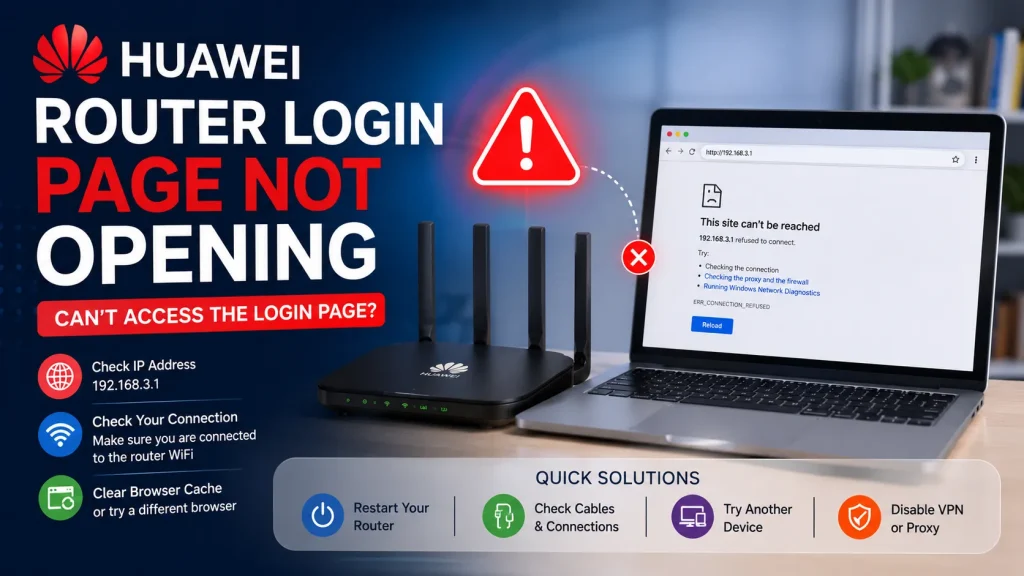
If the login page does not open after entering the router’s IP address, don’t worry. In most cases, the problem is caused by a simple connection or browser issue. Try the following solutions one by one.
Check Your Router Connection
Make sure your computer or mobile device is connected directly to the Huawei router using WiFi or an Ethernet cable. If you’re connected to another network, the login page will not open.
Verify the Router IP Address
Double-check that you are using the correct login address. Common Huawei router IP addresses include 192.168.3.1, 192.168.1.1, and 192.168.8.1. If these don’t work, find your router’s actual gateway address.
Enter the IP Address Correctly
Type the IP address directly into your browser’s address bar, not the search bar. Even a small typing mistake can prevent the login page from loading.
Try a Different Web Browser
If the page still doesn’t open, switch to another browser such as Google Chrome, Microsoft Edge, Firefox, or Safari. You can also clear your browser’s cache and cookies before trying again.
Restart the Router
Turn off your Huawei router, wait about 30 seconds, then turn it back on. Once all the indicator lights become stable, try opening the login page again.
Disable VPN or Proxy
If you’re using a VPN or proxy service, disconnect it temporarily. These services can sometimes block access to your router’s local admin page.
Huawei Router Username or Password Not Working?
If your login credentials are not accepted, try these quick solutions before resetting your router.
How to Change Your WiFi Name
After completing the Huawei Router Login, changing your WiFi name is simple.
Follow these steps:
How to Change Your WiFi Password
Changing your WiFi password regularly helps keep your network secure.
Follow these steps:
A good password should include:
How to Restart Your Huawei Router
Restarting the router can solve many common internet problems without changing your settings.
To restart your router:
You can also restart the router manually by turning the power off for about 30 seconds before turning it back on.
How to Reset a Huawei Router
If you forget the administrator password or cannot access the router, a factory reset may be necessary.
Before resetting, remember that it will erase:
Popular Huawei Router Models and Default Login Information
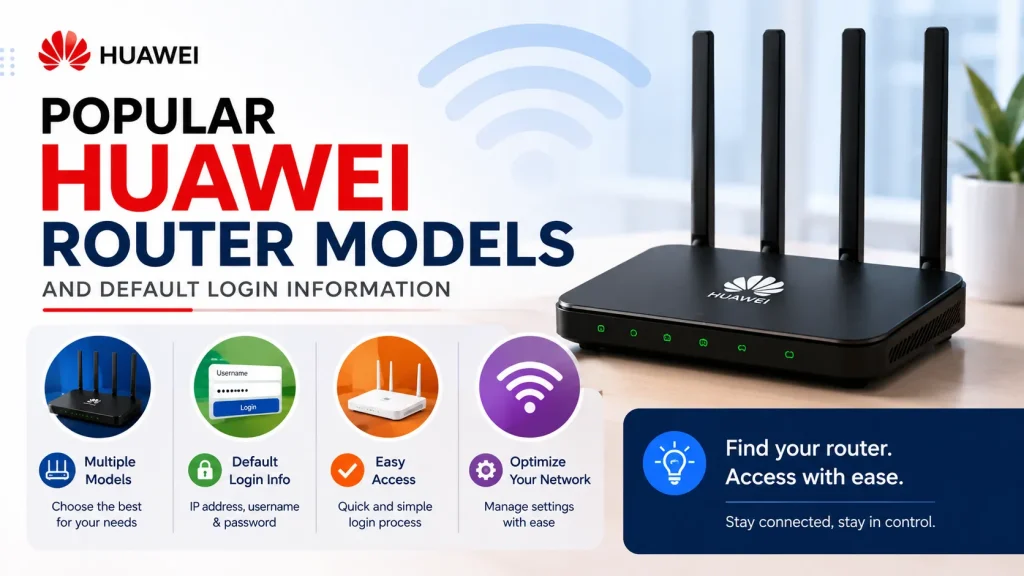
Huawei has released many routers for home users, offices, and internet service providers. Although the setup process is similar, the default IP address and login credentials may vary depending on the model.
Here are some common Huawei router models.
| Huawei Router Model | Common Login Address | Default Username | Default Password |
|---|---|---|---|
| Huawei HG8145V5 | 192.168.100.1 | admin | Printed on router label |
| Huawei HG8245H | 192.168.100.1 | telecomadmin / admin | Printed on router label |
| Huawei HG8247H | 192.168.100.1 | admin | Printed on router label |
| Huawei AX3 | 192.168.3.1 | admin | Created during setup |
| Huawei WS5200 | 192.168.3.1 | admin | Created during setup |
| Huawei WS7100 | 192.168.3.1 | admin | Created during setup |
| Huawei B315 | 192.168.8.1 | admin | admin or printed on label |
| Huawei B525 | 192.168.8.1 | admin | admin or printed on label |
| Huawei B535 | 192.168.8.1 | admin | Printed on router label |
| Huawei B618 | 192.168.8.1 | admin | Printed on router label |
Note: Login details may be changed by your internet service provider or during the initial setup. If the default credentials do not work, always check the label attached to your router.
Tips to Keep Your Huawei Router Secure
After logging in, follow these simple tips to keep your Huawei router and WiFi network secure.
Common Huawei Router Problems and Solutions
Here are some of the most common issues users face and their solutions.
| Problem | Solution |
|---|---|
| Login page not opening | Check your router IP address and confirm you are connected to the router. |
| Username or password incorrect | Use the credentials printed on the router label or reset the router if necessary. |
| Internet not working after changing settings | Restart the router and verify your configuration. |
| WiFi network not visible | Ensure wireless broadcasting is enabled and restart the router. |
| Slow internet speed | Move the router to an open location, update the firmware, and reduce interference from other devices. |
| Cannot access the admin page | Try another browser, clear the cache, or use an Ethernet connection. |
Frequently Asked Questions
What is the default IP address for a Huawei router?
The most common Huawei router IP addresses are 192.168.3.1, 192.168.1.1, 192.168.8.1, and 192.168.100.1. The correct address depends on your router model.
What is the default username and password?
Many Huawei routers use admin as the default username. The password may be admin, a custom password created during setup, or one printed on the router’s label.
Why can’t I access the router login page?
Make sure your device is connected to the Huawei router, enter the correct IP address in your browser’s address bar, and try using a different browser if the page still doesn’t load.
What should I do if I forget the administrator password?
If you cannot remember the administrator password, you will usually need to perform a factory reset. After the reset, use the default login information or the password printed on the router.
Will resetting the router delete my settings?
Yes. A factory reset removes all custom settings, including your WiFi name, WiFi password, administrator password, and other personalized configurations.
Can I log in using my mobile phone?
Yes. You can complete the Huawei Router Login from an Android phone, iPhone, tablet, laptop, or desktop computer as long as the device is connected to the router.
How often should I update my router firmware?
It is a good idea to check for firmware updates every few months or whenever Huawei releases a new version to improve security and performance.
Is an internet connection required to log in to the router?
No. You only need to be connected to the Huawei router through WiFi or an Ethernet cable. An active internet connection is not required to open the router’s admin page.
Conclusion
Completing a Huawei Router Login is simple when you have the correct IP address and administrator credentials. Once you access the router dashboard, you can manage your WiFi network, change passwords, update firmware, monitor connected devices, and improve your network security in just a few minutes.
If the login page does not open or the default credentials do not work, check the router label for the correct information or perform a factory reset if necessary. Keeping your router updated and using strong passwords will help ensure a faster, safer, and more reliable internet experience for your home or office.