Logging in to your Tenda router allows you to control and manage your home or office network. From the router’s admin panel, you can change your WiFi name, create a new password, check connected devices, improve security and update other network settings.
Most Tenda routers can be accessed through a web browser using the IP address 192.168.0.1 or the web address tendawifi.com. However, the correct login address and password may be different on some models. Tenda’s official support documentation recommends checking the router’s IP address when the default address has previously been changed.
Quick Tenda Router Login
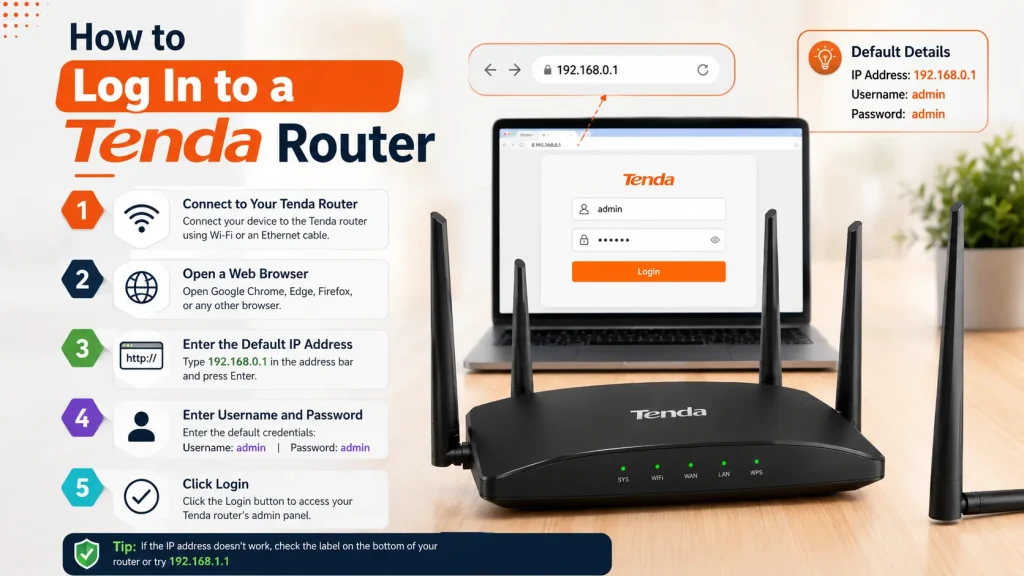
Follow these simple steps to access your Tenda router:
Make sure you enter the IP address in the browser’s address bar. Do not type it into the Google search box.
Default IP for Tenda
Default Logins for Tenda
| IP Address | Username | Password |
|---|---|---|
| 192.168.2.1 | admin | admin |
| 192.168.2.1 | admin | Blank |
| 192.168.0.1 | Blank | Blank |
What You Need Before Logging In
You do not need special software to open the Tenda router login page. You only need:
Your device must be connected to the Tenda router’s network. The login page is a local management page, so it normally cannot be opened through mobile data or another WiFi network. Tenda also explains that tendawifi.com works only when the device is connected to the router’s network.
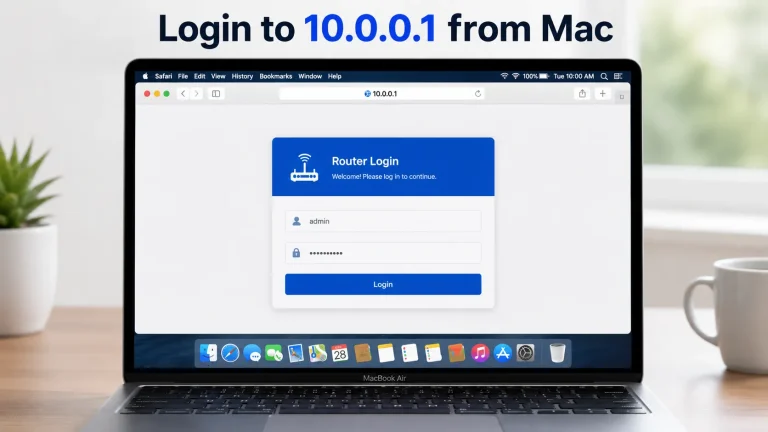
How to Log In to a Tenda Router
Logging into your Tenda router lets you manage your WiFi settings, change the network name and password, update security, and control connected devices through the easy-to-use admin panel.
Step 1: Connect to the Tenda Network
First, connect your device to the router.
On a phone or laptop, open the WiFi settings and select your Tenda network. Enter the WiFi password if required.
You can also connect a computer directly to one of the router’s LAN ports using an Ethernet cable. A wired connection is helpful when you are changing the WiFi name or password because the wireless connection may disconnect after the new settings are saved.
Step 2: Open a Web Browser
Open any updated web browser, such as:
You do not need an active internet connection to open the router panel, but your device must remain connected to the router.
Step 3: Enter the Tenda Login Address
Type one of these addresses into the browser address bar:
or
Then press Enter.
Tenda’s official login instructions identify both tendawifi.com and 192.168.0.1 as common ways to access the web management page.
If the page does not open, your router may use a different IP address. You can find the correct address through your device’s network settings.
Step 4: Enter the Admin Password
When the Tenda login screen appears, enter the administrator password.
Depending on the model, the login may use:
Do not confuse the router admin password with the WiFi password. They may be the same on some routers, but they serve different purposes.
The WiFi password connects your device to the wireless network. The admin password gives access to the router settings.
Step 5: Open the Admin Panel
Click Login, OK or Submit.
After successful login, the router dashboard will appear. The exact menu design can be different depending on the model, but you should see settings related to WiFi, internet, connected devices, security and system management.
How to Log In from an Android Phone
You can manage your Tenda router without a computer.
Turning off mobile data is not always required, but it can prevent the browser from trying to use your mobile internet instead of the local router network.
How to Log In from an iPhone
The process is almost the same on an iPhone:
You may see a warning that the page is “Not Secure.” This can happen because local router pages may not use a public security certificate. Confirm that you entered the correct local router address before continuing.
How to Find Your Tenda Router IP Address
If 192.168.0.1 does not open the login page, find the actual router address on your device.
On Windows
The number shown next to Default Gateway is usually your router’s current IP address.
You can also find it through Control Panel by opening your active network connection and checking the connection details. Tenda provides this method in its official guide for finding a changed router IP address.
On Android
On iPhone
On Mac
Enter that address into your browser to access the admin panel.
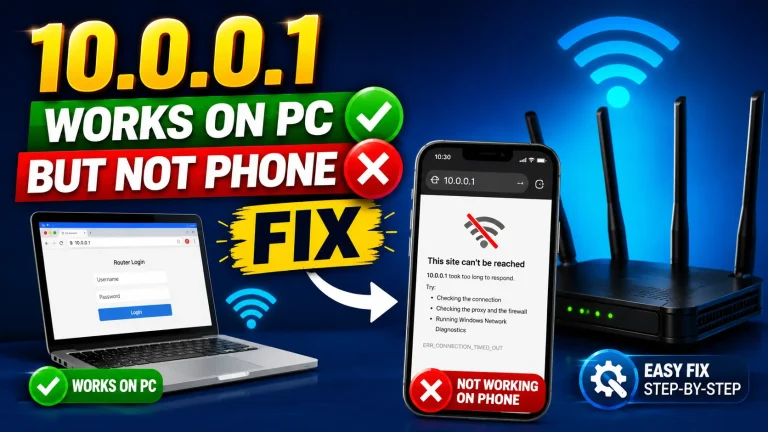
Tenda Login Page Not Opening
If the router login page does not load, try the following solutions.
Check Your Connection
Make sure your phone or computer is connected to the Tenda router. You cannot normally access the panel while connected to a different WiFi network.
Enter the Address Correctly
Type the address as:
192.168.0.1
Do not use incorrect versions such as:
The address contains numbers, not letters.
Use the Browser Address Bar
Enter the IP at the top of the browser. If you type it into Google, the browser may show search results instead of opening the router page.
Turn Off VPN or Proxy
A VPN or proxy may interfere with access to local network pages. Disable it temporarily and try again.
Try Another Browser
Clear the browser cache or open the login page in another browser. You can also use a private or incognito window.
Restart the Router
Turn off the router, wait about 30 seconds and turn it on again. Wait until the lights become stable before trying to log in.
Check the Correct Gateway
The router’s IP address may have been changed. Find the Default Gateway on your device and use that address.
Tenda Password Is Not Working
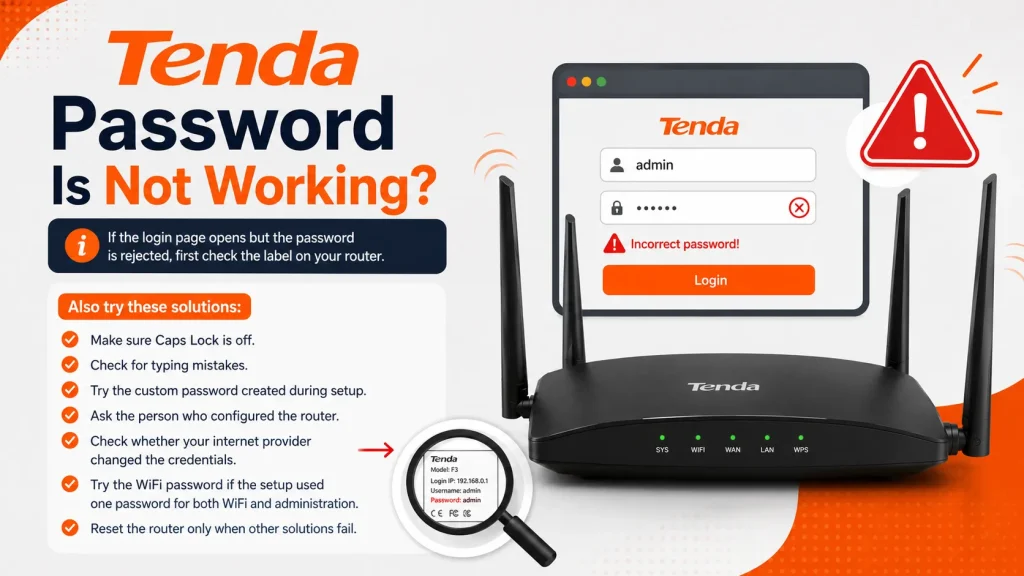
If the login page opens but the password is rejected, first check the label on your router.
Also try these solutions:
Do not repeatedly guess passwords if the router temporarily blocks login attempts.
How to Change the Tenda WiFi Name and Password
After logging in, look for a menu named WiFi Settings, Wireless Settings or WiFi Name & Password.
Follow these steps:
Tenda’s official instructions place the WiFi name and password options inside the router’s WiFi settings. The router may reboot or disconnect wireless devices after the changes are saved.
Use a password containing uppercase letters, lowercase letters, numbers and special characters. Avoid using your name, phone number or simple passwords such as 12345678.
How to Change the Tenda Admin Password
The admin password protects the router control panel. It should not remain blank or use an easy default password.
After logging in:
Store the new password in a secure place. Forgetting it may require a factory reset.
How to Check Connected Devices
Most Tenda dashboards include a section called:
Open this section to see the phones, computers, smart TVs and other devices connected to your network.
If you see an unknown device, you can block it through access control or blacklist settings. You should also change your WiFi password to prevent it from reconnecting.
How to Reset a Tenda Router
A factory reset should be used as a last option because it removes custom settings.
To reset the router:
For many supported Tenda devices, the company’s reset instructions recommend holding the reset button for approximately 8–10 seconds until the LED begins blinking. The exact procedure can vary, so check the manual for your model.
A factory reset may remove:
After resetting, you may need to configure the router again.
Security Tips After Login
Once you have access to the Tenda router, make these basic security improvements:
Avoid making changes to WAN, DNS, DHCP or advanced routing settings unless you understand their purpose. Incorrect settings may interrupt your internet connection, but they normally can be corrected by restoring the previous values.
Frequently Asked Questions
What is the default IP address for a Tenda router?
The most common Tenda router IP address is 192.168.0.1. Some models or changed network configurations may use another address.
Can I log in through tendawifi.com?
Yes. Connect to the Tenda router and enter tendawifi.com in the browser address bar. It works as a local management address on supported routers.
What is the default Tenda username and password?
Some models use admin, while others use a blank field or a password created during the first setup. Check the router label and model documentation.
Why is 192.168.0.1 not opening?
You may be connected to the wrong network, using an incorrect IP, running a VPN or entering the address into a search box. The router’s address may also have been changed.
Can I log in without internet access?
Yes. An internet connection is not required to open the local router panel. However, your device must be connected to the Tenda router.
Is the WiFi password the same as the admin password?
Not always. The WiFi password connects devices to the network, while the admin password protects the router settings.
Will resetting the router remove the WiFi password?
Yes. A factory reset usually removes the current WiFi name, password and other custom settings.
Can I manage my Tenda router from a phone?
Yes. Connect your Android phone or iPhone to the Tenda WiFi network and open 192.168.0.1 or tendawifi.com in a browser.
Final Words
The Tenda router login process is simple when your device is connected to the correct network. Open a browser, enter 192.168.0.1 or tendawifi.com, provide the admin password and open the management dashboard.
Once logged in, you can change your WiFi name and password, check connected devices, improve security and manage other network settings. If the login page does not open, check your connection, disable VPN services, try another browser and find the router’s actual Default Gateway.
Always record your current settings before making major changes, and use a factory reset only when you cannot recover access through another method.