Logging into your Linksys router gives you full control of your WiFi network. You can change your WiFi name and password, check connected devices, create a guest network, update the router firmware, and manage parental controls. It also helps you keep your network secure and running smoothly.
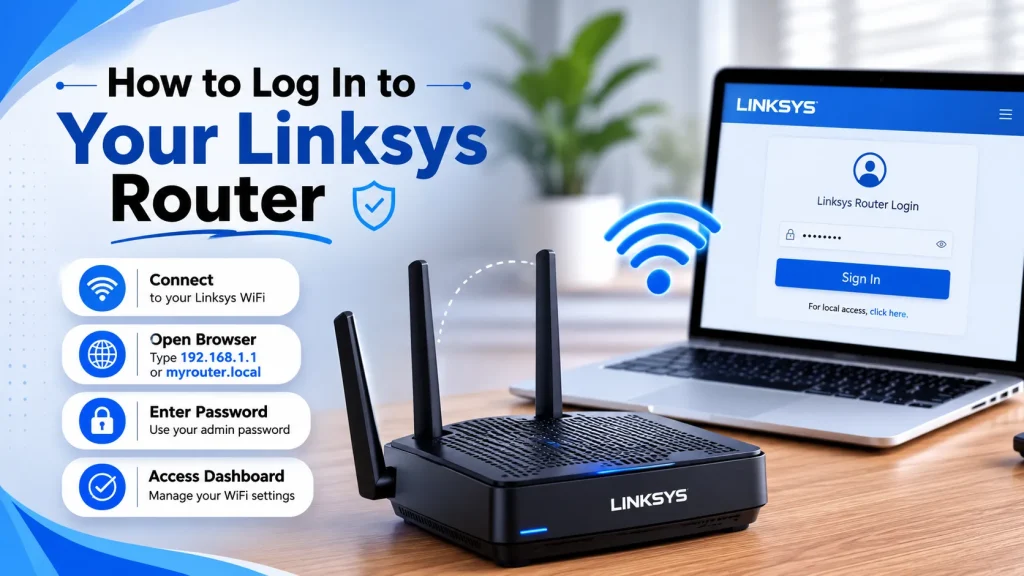
Most Linksys routers use 192.168.1.1 or myrouter.local as the login address. Open one of these in your web browser, enter the correct router password, and access the admin dashboard. The login address and password may be different depending on your Linksys router model.
Quick Answer
Connect your phone or computer to your Linksys WiFi. Open a web browser and enter 192.168.1.1 or myrouter.local. Type your router password and click Sign In. Many older Linksys routers use admin as the default password, while newer models use a password printed on the router label or one created during setup.
Common Login Details
| What | Usual Value |
|---|---|
| Default address | 192.168.1.1 |
| Other address | myrouter.local |
| Another possible address | 192.168.0.1 |
| Default username | Blank or “admin” |
| Default password | admin |
| Newer routers | Password is on the label |
Every Linksys router is not the same. Before trying random passwords, check the sticker on the back or bottom of your router. It usually shows the WiFi name, WiFi password, and other useful details.
How to Log In to Your Linksys Router
Before you begin, make sure your device is connected to the Linksys router. Then follow the simple steps below to access the router’s admin panel and manage your WiFi settings, security, and other network features.
Step 1: Connect to Your Linksys Router
First, connect your phone, tablet, or computer to your Linksys router. You can connect through the WiFi network or by using an Ethernet (LAN) cable. A wired connection is recommended if you do not know the WiFi password or if your wireless connection keeps disconnecting.
You do not need an active internet connection to access the router’s login page. Your device only needs to be connected to the Linksys router.
Step 2: Open a Web Browser
Open any modern web browser, such as Google Chrome, Microsoft Edge, Mozilla Firefox, or Safari. Using the latest version of your browser can help prevent loading or compatibility issues.
Step 3: Enter the Login Address
In the browser’s address bar, type one of the following login addresses and press Enter:
Make sure you type the address into the browser’s address bar, not the Google search box. If the page does not open, your router may use a different address, such as 192.168.10.1, depending on the model.
Step 4: Enter Your Login Details
When the login page appears, enter your router’s administrator password. Depending on your Linksys model, you can try one of the following:
- Use admin as the password.
- Leave the username blank and enter admin as the password.
- Use the password printed on the router label.
- Enter the password you created during the first setup.
Passwords are case-sensitive, so enter them carefully. If the password is incorrect, double-check for typing mistakes before trying again.
Step 5: Access the Router Dashboard
Click Sign In, Log In, or OK to open the Linksys admin panel. Once you are logged in, you can manage your WiFi settings, change your network name and password, check connected devices, update the router firmware, create a guest network, and configure other important settings. The dashboard layout may vary depending on your Linksys router model and firmware version.
Linksys Smart WiFi Login
Many newer Linksys routers use the Linksys Smart WiFi interface. Connect your device to the Linksys network, then open 192.168.1.1 or myrouter.local in your browser. If you’re asked to sign in with a Linksys account, choose “For local access, click here” and enter your router password. After logging in, you can manage your WiFi settings, connected devices, guest network, and other router features.
Logging In From Your Phone
Other Possible Router Addresses
| Address | Used For |
|---|---|
| 192.168.1.1 | Most common |
| 192.168.0.1 | Some older routers |
| 192.168.10.1 | Some newer routers |
| 192.168.15.1 | Some voice/gateway routers |
| 192.168.16.1 | Some travel routers |
| 192.168.1.245 | Some access points |
Not every address works on every router. It depends on your model.
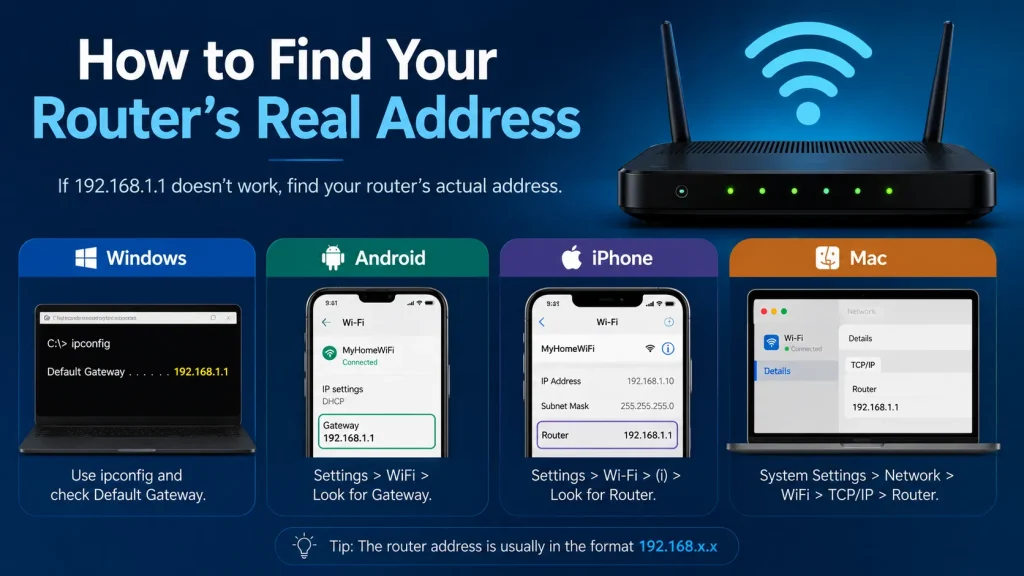
How to Find Your Router’s Real Address
If 192.168.1.1 doesn’t work, find your router’s actual address:
On Windows:
On Android:
On iPhone:
On Mac:
How to Change Your WiFi Name and Password
After this, all your devices will disconnect. Reconnect them using the new name and password.
How to Change the Admin (Login) Password
Use a strong password with uppercase, lowercase letters, numbers, and symbols. Make it different from your WiFi password.
If the Login Page Doesn’t Open
Try these fixes one by one:
If the Password Doesn’t Work
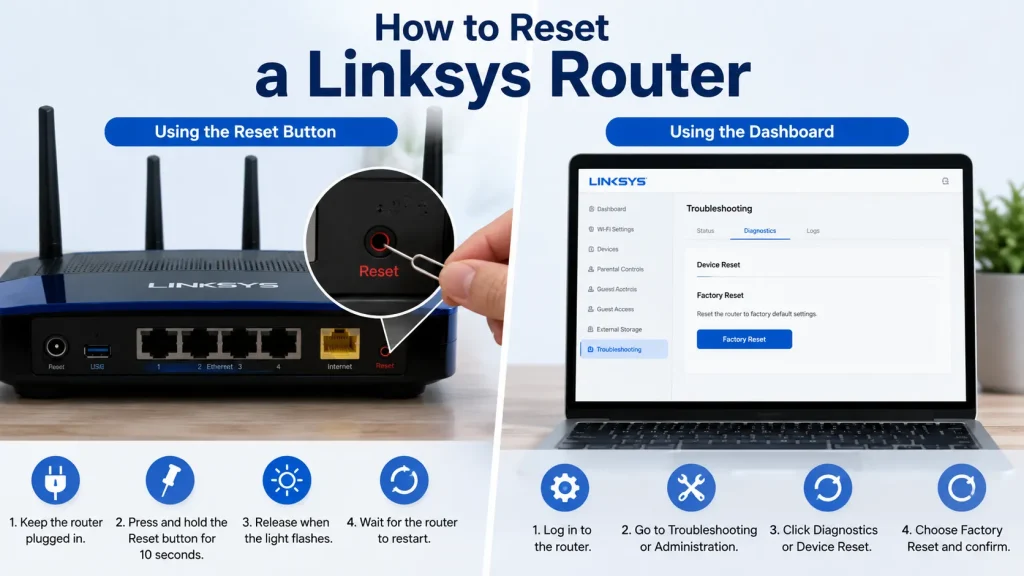
How to Reset a Linksys Router
Using the Reset Button:
Using the Dashboard:
Things to Check After Logging In
Don’t change internet, DHCP, DNS, or firewall settings unless you know what they do — wrong settings can break your connection.
Frequently Asked Questions
What is the default Linksys router address?
Usually 192.168.1.1. Some models use 192.168.0.1 or 192.168.10.1.
What is the default password?
Usually “admin” for older models. Newer ones have a unique password on the label.
What is the default username?
Sometimes “admin,” sometimes left blank.
Can I log in without internet?
Yes, as long as your device is connected to the router.
Why won’t 192.168.1.1 open?
You may be on the wrong network, the address may have changed, or a VPN might be blocking it.
Can I log in from my phone?
Yes — connect to the Linksys WiFi and open the address in a browser, or use the Linksys app.
Does resetting delete everything?
Yes, it erases all your custom settings.
Final Words
Logging into your Linksys router is quick and gives you full control over your WiFi network. Open 192.168.1.1 or myrouter.local, enter the correct router password, and access the admin dashboard. After logging in, update your WiFi settings, change the administrator password, and check connected devices regularly. If the login page does not open, verify your connection, try another browser, or restart the router before performing a factory reset.