ASUS Router Login – Admin Access Guide (2026)
Logging into your ASUS router gives you full control over your home or office network. From this single admin panel, you can update your WiFi name and password, monitor connected devices, configure parental controls, set up a guest network, install firmware updates, and manage advanced security settings.
Most ASUS routers follow a simple, predictable login process. Once your device is connected to the router — either over WiFi or through a LAN cable — you only need a browser and the correct login address to reach the admin dashboard. In most cases, this is done through 192.168.1.1, 192.168.50.1, or the easier-to-remember router.asus.com.
This guide walks you through the entire process step by step: finding the right login address, entering the correct credentials, troubleshooting common login issues, resetting a forgotten password, and securing your router once you’re inside.
Quick Answer
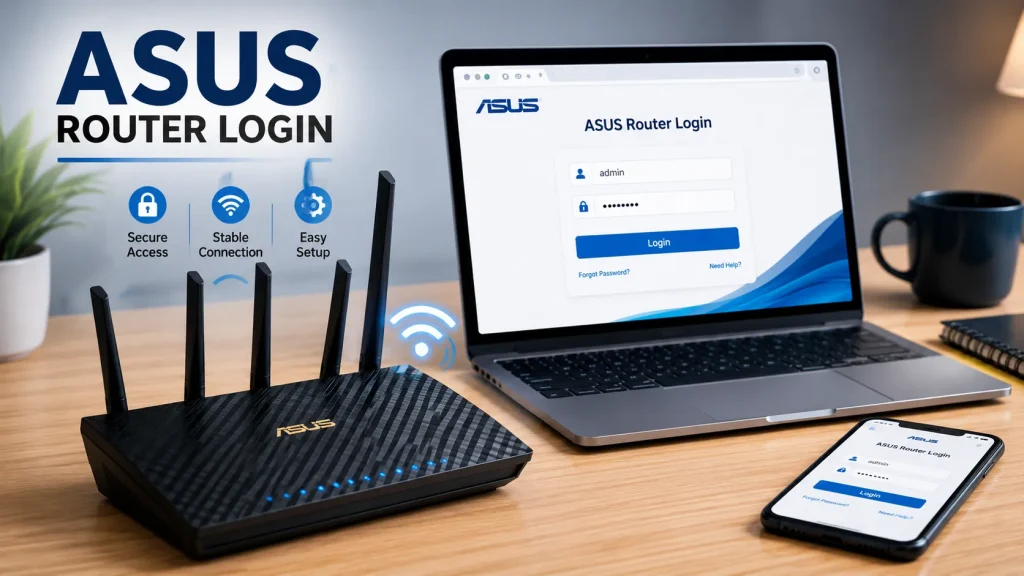
To log into your ASUS router, connect your device to the ASUS WiFi network or plug in a LAN cable. Open any browser and enter http://router.asus.com or http://192.168.1.1 in the address bar. When the login page appears, enter your admin username and password to open the dashboard.
If 192.168.1.1 doesn’t load the login page, try 192.168.50.1 — many newer ASUS models use this as their default gateway instead.
ASUS Router Default Login Details
| Detail | Common Value |
|---|---|
| Login URL | router.asus.com |
| Default IP Address | 192.168.1.1 |
| Alternative IP | 192.168.50.1 |
| Username | admin |
| Password | admin |
| Alternative Login | admin / password |
| Panel Type | ASUS Router Admin Panel |
These are the manufacturer’s default settings. If your internet provider or a previous user changed them, your actual login details may be different. New routers will also usually prompt you to set a custom admin password during the first-time setup.
What Is ASUS Router Login?
ASUS router login refers to accessing your router’s administrative interface — also called the admin panel, control panel, or dashboard. This is a separate system from your regular WiFi connection.
Your WiFi password simply allows a device to join the network and access the internet. Your router’s admin password, on the other hand, grants access to the actual settings that control how that network behaves — including security, device management, and firmware.
Once inside the admin panel, you can rename your WiFi network, strengthen your security settings, block unrecognized devices, create a separate guest network, update your router’s firmware, and monitor overall bandwidth usage.
What You Need Before Logging In
Before attempting to open the ASUS login page, make sure the following are in place:
Note that an active internet connection isn’t required to reach the login page — since it’s hosted locally on the router itself, your device only needs to be connected to the router, not to the wider internet.
How to Log Into the ASUS Router Admin Panel
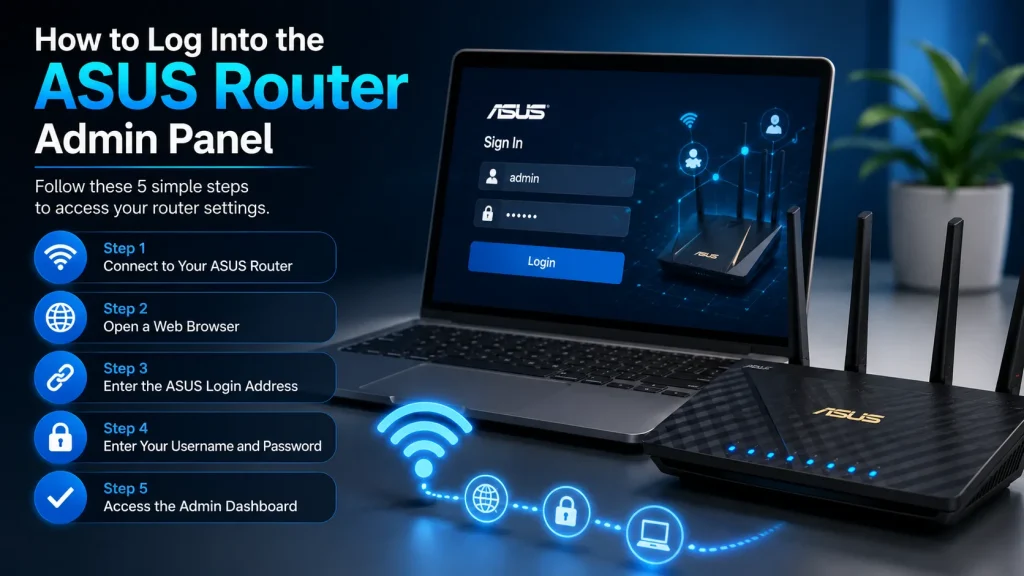
Follow these five steps to access your router’s settings.
Step 1: Connect to Your ASUS Router
You can connect to your router in one of two ways.
Step 2: Open a Web Browser
Once connected, open any browser — Chrome, Edge, Firefox, or Safari all work fine. Click directly into the address bar at the top of the window. Avoid typing the address into a search engine box, as this can lead to incorrect or unofficial results.
Step 3: Enter the ASUS Login Address
Type one of the following into the address bar:
Press Enter. If the address is correct for your model, the ASUS login page will load.
Step 4: Enter Your Username and Password
On the login screen, enter your admin credentials.
The most common defaults are:
Some models instead use password as the default, or require the custom password you created during initial setup. If you’ve changed your admin password before, use the updated one.
Step 5: Access the Admin Dashboard
After entering your credentials correctly, click Login or Sign In. You’ll now be inside the ASUS admin panel, where you can manage your WiFi, security settings, connected devices, guest network, parental controls, and firmware.
Logging In Using router.asus.com
router.asus.com is ASUS’s official, easy-to-remember login address — a simpler alternative to typing an IP address. As long as your device is connected to the router, this address should redirect you straight to the login page.
If it fails to load, fall back to the IP address method: try 192.168.1.1 first, and 192.168.50.1 if that doesn’t work.
Logging In Using 192.168.1.1
192.168.1.1 is the most widely used default IP address across ASUS router models. To use it, connect your device to the router, open a browser, and enter:
http://192.168.1.1
If this is your router’s assigned IP, the login page will appear. If not, your specific model may be using a different default address.
Logging In Using 192.168.50.1
A number of newer ASUS models — particularly mesh and Lyra series routers — use 192.168.50.1 as their default gateway instead. Enter the following into your browser:
http://192.168.50.1
Once the page loads, sign in with your admin username and password.
Finding Your Router’s IP Address Manually
If none of the standard addresses work, you can find your router’s actual IP directly from your device.
Enter whichever address you find into your browser to reach the correct login page.
Default Login Credentials by ASUS Router Model
Login credentials and default IP addresses can vary slightly by model. The table below lists the most common defaults for popular ASUS router series — always check the sticker on your physical router first, as it reflects your exact unit.
| Model | Username / Password | Default IP |
|---|---|---|
| RT-AC68U | admin / admin | 192.168.1.1 |
| RT-AC86U | admin / admin | 192.168.1.1 |
| RT-AC88U | admin / admin | 192.168.1.1 |
| RT-AX88U (AX6000) | admin / admin | 192.168.1.1 |
| RT-AX92U | admin / admin | 192.168.1.1 |
| RT-AX95U (GT-AX11000) | admin / admin | 192.168.1.1 |
| GT-AC5300 | admin / admin | 192.168.1.1 |
| GT-AC2900 (ROG Rapture) | admin / admin | 192.168.1.1 |
| GT-AX11000 | admin / admin | 192.168.1.1 |
| Blue Cave | admin / admin | 192.168.1.1 |
| Lyra (MAP-AC2200) | admin / admin | 192.168.1.1 |
| Lyra Mini (MAP-AC1300) | admin / admin | 192.168.1.1 |
| Lyra Trio (MAP-AC1750) | admin / admin | 192.168.72.1 |
| Lyra Voice (AC2200) | admin / admin | 192.168.1.1 |
| RT-AC1200 | admin / admin | 192.168.50.1 |
| RT-AC1200GU | admin / admin | 192.168.50.1 |
| RT-AC42U | admin / admin | 192.168.50.1 |
| RT-AC66U B1 | admin / admin | 192.168.50.1 |
| RT-ACRH13 | admin / admin | 192.168.50.1 |
| RT-ACRH17 | admin / admin | 192.168.50.1 |
| RT-N66U C1 | admin / admin | 192.168.50.1 |
| DSL-AC68U | admin / admin | 192.168.1.1 |
| DSL-N55U | admin / admin | 192.168.1.1 |
| 4G-AC68U | admin / admin | 192.168.1.1 |
| TM-AC1900 (T-Mobile) | admin / password | 192.168.29.1 |
| DSL-AC87VG | admin / password | — |
| WL-330NUL | — | 192.168.2.1 |
If your exact model isn’t listed here, the general defaults — admin / admin at 192.168.1.1 — are correct for the vast majority of ASUS routers.
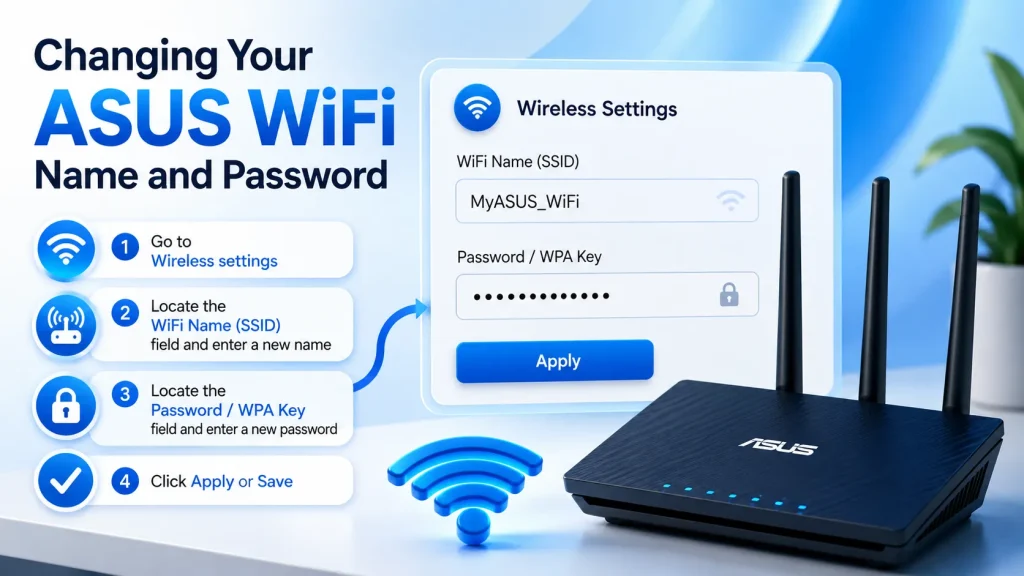
Changing Your ASUS WiFi Name and Password
Once you’re logged into the admin panel, updating your WiFi credentials is straightforward:
After saving, connected devices will briefly disconnect. Reconnect them using the new password. Choose a strong password that combines letters, numbers, and symbols, and avoid predictable choices like 12345678 or a phone number.
Changing Your ASUS Admin Password
The admin password is separate from your WiFi password and protects access to the router’s settings themselves.
To change it, log into the dashboard, open Administration or System settings, and locate the admin password field. Enter your current password, then set a new one and save the changes.
Keep this password private — anyone with access to it can modify your entire network configuration.
Troubleshooting: ASUS Router Login Not Working
If the login page won’t load, work through these checks in order:
If the page still won’t load, check your device’s default gateway address manually (see the section above) and use that instead.
Troubleshooting: Wrong Username or Password
If the login page loads but your credentials are rejected, the admin details have likely been changed from the factory defaults. Try the standard combination first:
- Username:
admin/ Password:admin
If that fails, try:
- Username:
admin/ Password:password
Check the label on the physical router as well — many models print the default login details directly on a sticker. If none of these work, a factory reset will be necessary.
How to Reset Your ASUS Router
A factory reset restores the router to its original settings, erasing your WiFi name, WiFi password, admin password, and any custom configuration. Use this only as a last resort, when login is otherwise impossible.
If you need more detailed instructions, follow our complete How to Reset Your Router guide. It explains when a reset is necessary, what settings will be erased, and how to set up your router again after resetting.
Logging In Through the ASUS Router App
For quicker, on-the-go management, ASUS also offers a dedicated mobile app.
The app lets you view connected devices, adjust WiFi settings, restart the router, and manage guest access. For full control over advanced settings, the web-based admin panel remains the more complete option.
What You Can Do After Logging In
Once inside the admin dashboard, you have access to a wide range of network controls:
Make changes carefully — incorrect settings can temporarily disrupt your internet connection.
Security Best Practices for Your ASUS Router
Router security directly affects the safety of every device on your network. Keep these practices in mind:
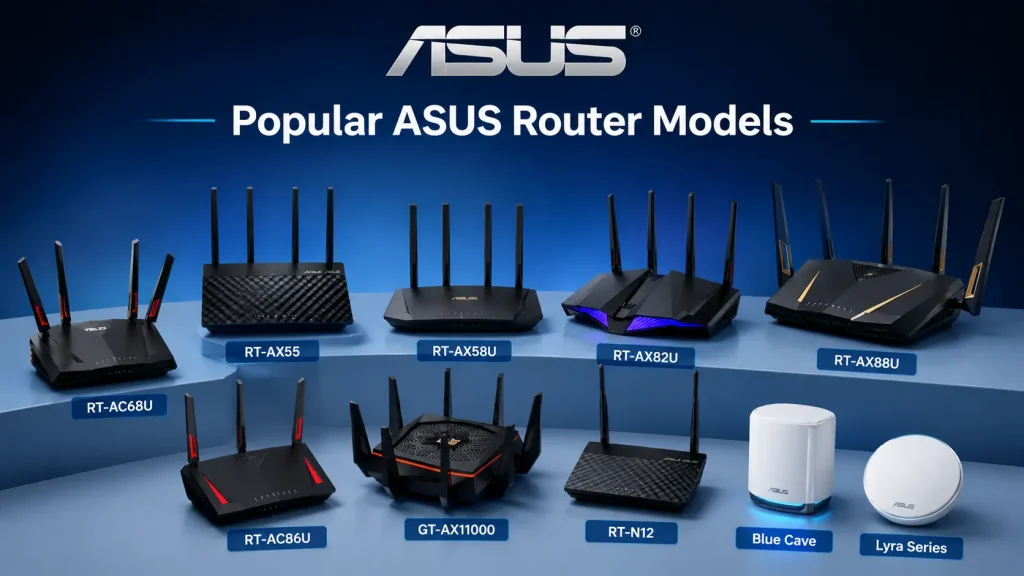
Popular ASUS Router Models
ASUS offers a wide range of router models, and nearly all of them follow the same general login process. Some of the most widely used include:
While the exact login IP can differ by model, router.asus.com, 192.168.1.1, and 192.168.50.1 remain the best starting points for any ASUS device.
Frequently Asked Questions
What is the default IP for an ASUS router?
The most common default is 192.168.1.1. Many newer models instead use 192.168.50.1.
What is the ASUS router login URL?
Router.asus.com is the official login address. It can be opened in any browser while your device is connected to the ASUS network.
What is the default ASUS router username and password?
Most ASUS routers use admin for both the username and password. Some models use a different default password or require you to create one during first-time setup.
Why isn’t router.asus.com opening?
This usually happens when your device isn’t connected to the ASUS router itself. Disable mobile data, VPN, or proxy connections, then try again — or use 192.168.1.1 / 192.168.50.1 as alternatives.
Can I log into my ASUS router from a phone?
Yes. Connect your phone to the ASUS WiFi network, open a browser, and enter router.asus.com or the router’s IP address.
How do I reset my ASUS router password?
If you’ve forgotten the admin password, press and hold the reset button for about 10 seconds to restore factory settings.
Is the WiFi password the same as the admin password?
No. The WiFi password connects a device to the internet. The admin password grants access to the router’s settings page.
Do I need internet access to open the ASUS login page?
No. The login page is hosted locally, so it works as long as your device is connected to the router — even without an active internet connection.
Final Thoughts
Logging into your ASUS router is a simple process once you know the correct address and credentials. Connect your device to the router, open router.asus.com, 192.168.1.1, or 192.168.50.1 in a browser, and sign in with your admin username and password.
From there, the admin dashboard puts full control of your network in your hands — WiFi settings, device management, security configuration, and more. If you ever run into login issues, work through the troubleshooting steps above, and use a factory reset only as a final option. Once you’re in, take a moment to update your default admin password and strengthen your overall network security.
Related Router Login Guides
If you’re looking for other router login tutorials, these guides may also help: