Logging in to your NETGEAR router gives you full control over your home or office network. From the admin panel, you can change your WiFi name and password, manage connected devices, update the router firmware, enable parental controls, create a guest network, and improve your network security.
Most NETGEAR routers use the same login process, regardless of the model. If your device is connected to the router, you only need a web browser and the correct login address to access the admin dashboard.
This guide explains everything in simple steps, including the default IP address, username, password, common login problems, password recovery, factory reset, and important security tips.
Quick Answer
To log in to your NETGEAR router, connect your computer or phone to the router’s WiFi or LAN cable. Open a web browser and enter http://routerlogin.net, http://routerlogin.com, 192.168.1.1, or 192.168.0.1 in the address bar. When the login page appears, enter the default username admin and the default password password (unless they were changed previously). After signing in, you can manage all router settings from the NETGEAR admin dashboard.
Default NETGEAR Router Login Details
Most NETGEAR routers use the following default login information.
| Setting | Default Value |
|---|---|
| Default IP Address | 192.168.1.1 |
| Alternative IP | 192.168.0.1 |
| Login Address | routerlogin.net |
| Alternative Login | routerlogin.com |
| Default Username | admin |
| Default Password | password |
Note: Some Internet providers customize NETGEAR routers, so the default username or password may be different. If the default login does not work, check the sticker on your router.
Common NETGEAR Router Login Addresses
Depending on your router model, you may be able to access the login page using one of these addresses.
If one address does not open the login page, simply try another one from the list above.
Before You Log In
Before opening the NETGEAR login page, make sure the following requirements are met.
Completing these simple checks helps avoid most login problems.
How to Log In to Your NETGEAR Router
Logging in only takes a few minutes.
Step 1: Connect to the Router
Connect your computer, laptop, tablet, or smartphone to your NETGEAR router.
You can connect in two ways:
Make sure your device stays connected during the login process.
Step 2: Open Your Web Browser
Open any web browser on your device.
You can use:
It is a good idea to refresh the browser or clear the cache if you have previously experienced login issues.
Step 3: Enter the Login Address
In the browser address bar, type one of the following addresses.
http://routerlogin.netor
http://routerlogin.comIf these addresses do not work, enter:
192.168.1.1or
192.168.0.1Press Enter.
After a few seconds, the NETGEAR login page should appear.
Step 4: Enter the Username and Password
On the login page, enter your administrator credentials.
Username
adminPassword
passwordRemember that the username and password are case-sensitive.
Step 5: Access the Admin Dashboard
Click the Log In button.
Once logged in, you will see the NETGEAR router dashboard where you can manage all router settings.
From here you can:
Log In Using 192.168.1.1 or 192.168.0.1
Many NETGEAR routers also allow login through a local IP address.
Simply type one of these addresses into your browser.
When the login page appears:
If neither IP address works, your router may be using a different gateway. You can check the router label or find the default gateway from your computer’s network settings.
Change the NETGEAR Admin Password
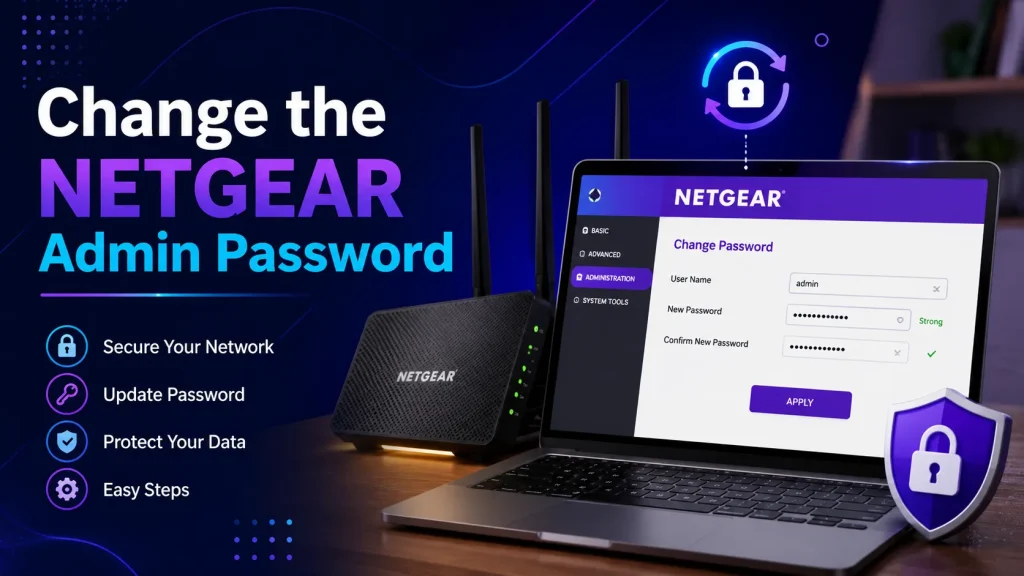
Changing the default administrator password is one of the first things you should do after logging in. The default password is widely known, so replacing it with a strong password helps protect your router from unauthorized access.
Follow these steps to change the admin password:
Choose a password that contains uppercase and lowercase letters, numbers, and special characters. Avoid using simple passwords such as 123456, password, or your name.
Tip: Enable Password Recovery if your router supports it. This makes it easier to recover your administrator password later.
How to Change Your WiFi Name and Password
Your WiFi password is different from the administrator password used to log in to the router. Changing your WiFi password regularly helps keep your wireless network secure.
To change your WiFi name and password:
After saving the changes, all connected devices will disconnect automatically.
Reconnect each device using the new WiFi password.
Forgot Your NETGEAR Router Password?
If you cannot remember the administrator password, don’t worry. There are two common ways to regain access to your router.
Method 1: Password Recovery
Many NETGEAR routers include a built-in password recovery feature.
Follow these steps:
If password recovery was never enabled, move to the factory reset method below.
How to Factory Reset a NETGEAR Router
A factory reset restores your router to its original settings. Use this option only if you cannot log in or have forgotten the administrator password.
Keep in mind that a factory reset removes all customized settings, including:
To reset your router:
After the reset, log in using the default credentials.
| Setting | Default Value |
|---|---|
| Username | admin |
| Password | password |
You can now set up the router again from the beginning.
NETGEAR Router Login Not Working?
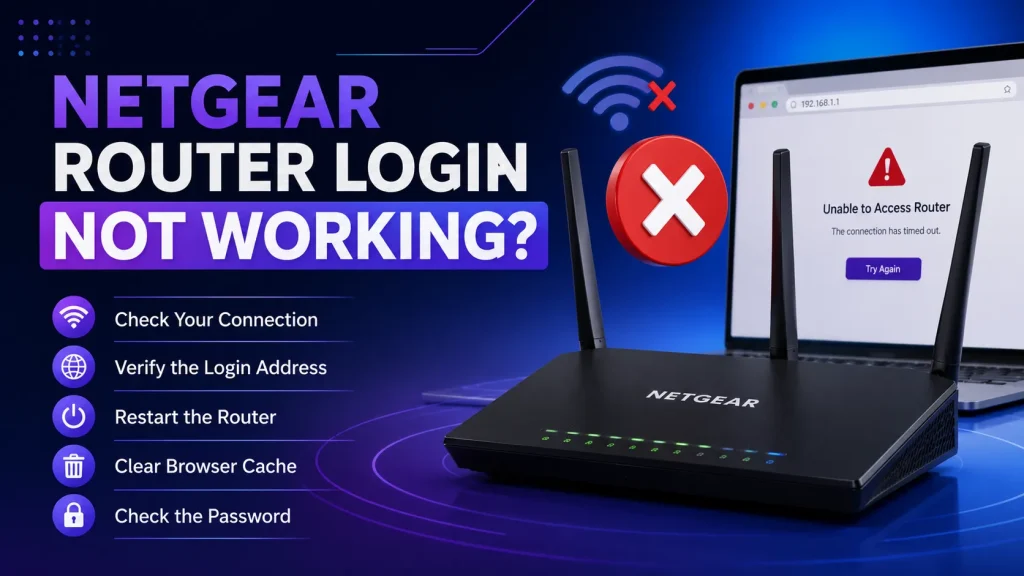
Sometimes the login page may not open, or your username and password may not work. Most login problems can be solved within a few minutes.
Here are the most common solutions.
Check Your Connection
First, make sure your phone or computer is connected to the NETGEAR router.
If possible, connect using an Ethernet cable because it provides a more stable connection.
Verify the Login Address
Use one of these addresses:
Make sure you type the address correctly into the browser’s address bar instead of the search bar.
Clear Your Browser Cache
Old browser data can sometimes prevent the login page from loading properly.
Clear your browser cache and cookies, then close the browser completely before trying again.
Try Another Browser
If Chrome is not working, try another browser such as:
This simple step often fixes browser-related login issues.
Restart the Router
Restarting the router refreshes the network.
Disable VPN or Proxy
A VPN or proxy server may prevent access to your router’s local login page.
Temporarily disable any VPN service before trying again.
Check the Administrator Password
If the default password does not work, someone may have changed it during the initial setup.
Try your custom administrator password before performing a factory reset.
Update the Router Firmware
Older firmware versions can sometimes cause login or performance issues.
After logging in successfully, check for firmware updates under the Administration or Firmware Update section and install any available updates.
Find the Correct Router IP Address
If 192.168.1.1 and 192.168.0.1 do not work, your router may be using a different local IP address.
You can find the correct gateway by checking your device’s network settings or by looking at the label attached to the router.
Popular NETGEAR Router Models
NETGEAR offers many router models for homes, offices, gamers, and businesses. While the design and features may differ, the login process is almost the same on all models.
Some of the most popular NETGEAR routers include:
Whether you own a Nighthawk, Orbi, or another NETGEAR router, you can usually access the admin panel using routerlogin.net, 192.168.1.1, or 192.168.0.1.
What Can You Do After Logging In?
Once you access the NETGEAR admin dashboard, you can manage almost every part of your network.
Some of the most useful features include:
Regularly checking these settings helps keep your internet connection fast, stable, and secure.
NETGEAR Router Security Tips
A few simple security habits can greatly improve the safety of your home network.
Follow these recommendations:
These small steps can help protect your network from unauthorized access.
Frequently Asked Questions
What is the default username for a NETGEAR router?
The default username for most NETGEAR routers is admin.
What is the default NETGEAR password?
The default administrator password is usually password unless it has been changed during setup.
What is the default NETGEAR IP address?
Most NETGEAR routers use 192.168.1.1 or 192.168.0.1 as the default login IP address.
Why is routerlogin.net not working?
If routerlogin.net does not open, try 192.168.1.1 or 192.168.0.1 instead. Also make sure your device is connected to the NETGEAR router and clear your browser cache if necessary.
Why can’t I log in to my NETGEAR router?
The most common reasons include:
Checking these items usually solves the problem.
How do I reset my NETGEAR router?
Press and hold the Reset button on the back of the router for about 10 seconds until the Power LED starts blinking. After the router restarts, you can log in using the default administrator credentials.
Can I log in using my smartphone?
Yes. You can access your NETGEAR router from any Android or iPhone connected to the router’s WiFi network. Simply open a browser and visit routerlogin.net, 192.168.1.1, or 192.168.0.1.
Does changing the WiFi password also change the admin password?
No. The WiFi password and administrator password are different.
- The WiFi password is used to connect devices to your wireless network.
- The administrator password is used to log in to the NETGEAR router settings.
You can change each password separately.
How often should I update my router firmware?
It is a good practice to check for firmware updates every few months or whenever NETGEAR releases a new update. Installing the latest firmware improves security, fixes bugs, and may also improve network performance.
Conclusion
Logging in to your NETGEAR router is simple once you know the correct login address and administrator credentials. Most routers can be accessed through routerlogin.net, routerlogin.com, 192.168.1.1, or 192.168.0.1 using the default username admin and the default password password.
After logging in, you can change your WiFi name and password, manage connected devices, install firmware updates, improve security, and customize your network settings. If you ever experience login problems, checking your connection, verifying the login address, or performing a factory reset can usually restore access.
Keeping your router updated and using strong passwords will help protect your network and ensure a fast, secure, and reliable internet connection.